You have a 200-page report on your desk. Your client expects a briefing by noon. Reading every page would take hours, and skimming always leaves gaps. Claude, built by Anthropic, can process that entire document in a single conversation and return a structured summary you can trust.
But dropping a file and typing "summarize this" is not enough. The output depends on your prompt, your model choice, and the way you verify the result. This guide walks you through each step so you get accurate summaries from long PDFs without hallucinations or missing data.
Why Is Claude a Strong Choice for Summarizing Long PDFs?
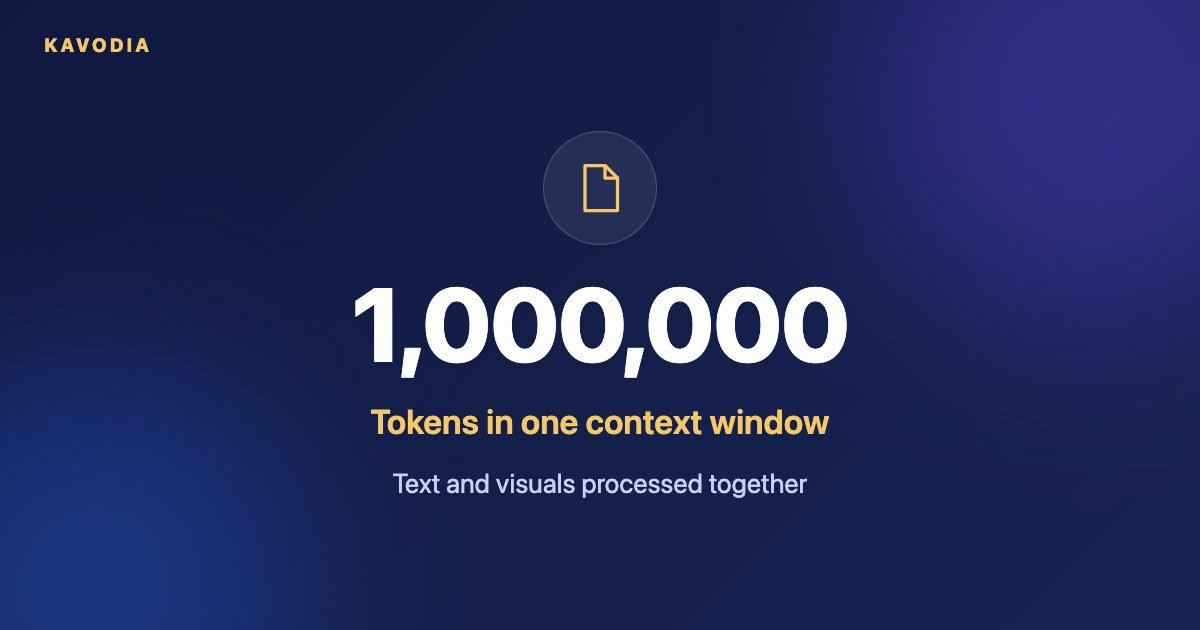
Claude stands out because of its context window. According to the Anthropic models documentation, every current Claude model supports a 1,000,000-token context window. One million tokens translates roughly to 750,000 words or several hundred pages of dense text. You can feed an entire annual report, a legal contract, or a research paper in a single prompt.
On top of that, Claude reads PDFs natively. There is no need to convert your file to plain text first. The Anthropic PDF support documentation explains that Claude extracts the text layer and also renders each page as an image. Charts, tables, headers, and footnotes all stay visible to the model.
Imagine you run a small consulting firm. A prospect sends you a 180-page market study and asks for your opinion before a meeting. You upload the full PDF to Claude, ask for an executive summary, and get a structured answer in under two minutes. No copy-paste, no third-party tool.
What Are the File Limits for PDF Uploads?
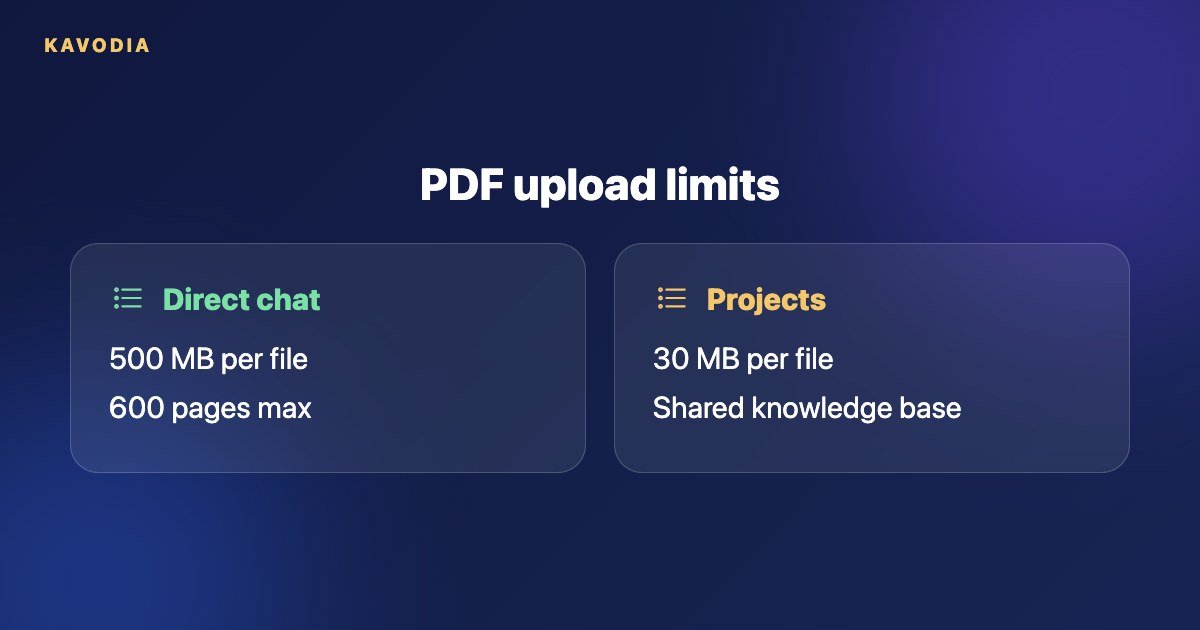
Before you upload, check two limits. First, the file size. In a standard Claude chat on claude.ai, you can attach files up to 500 MB. In Claude Projects, the per-file limit is 30 MB, but you can upload many files into the same project knowledge base.
Second, the page count. The Anthropic documentation states that Claude accepts up to 600 pages per PDF when the model uses its full 1,000,000-token context window. For shorter context settings (under 1M tokens), the limit drops to 100 pages.
I recommend checking your document length before uploading. A 300-page PDF with dense tables will consume more tokens than a 300-page report with large margins. If your file exceeds 600 pages, split it into two or three parts and process each one separately.
Which Claude Model Should You Pick for PDF Summaries?
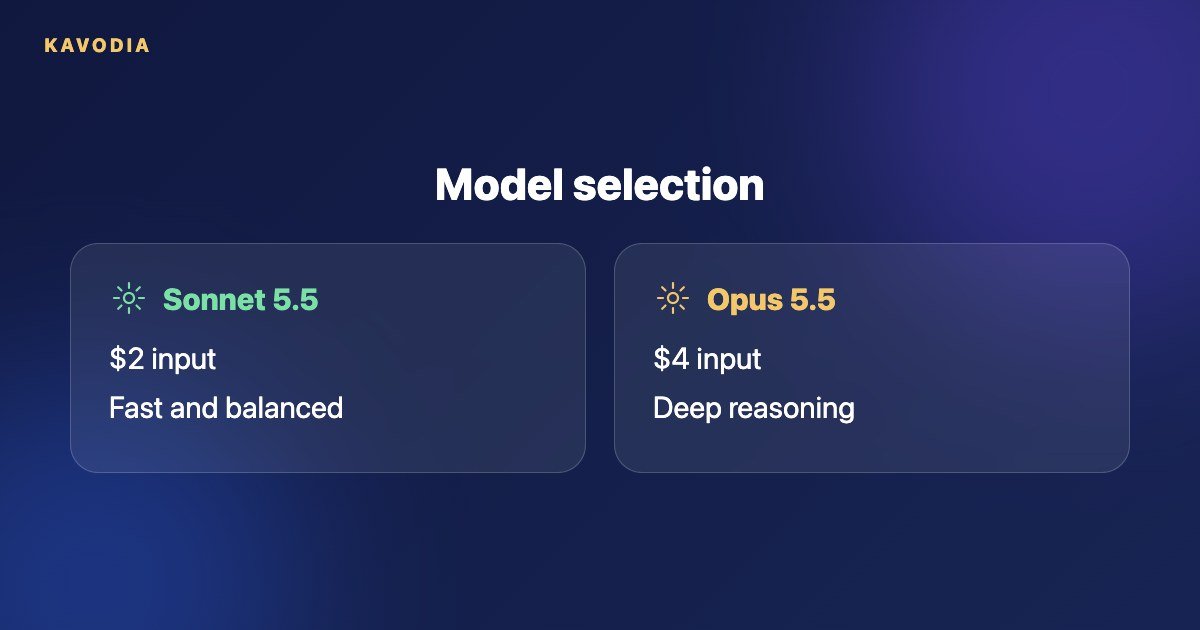
Anthropic offers several models with different speed and cost profiles. According to the Anthropic pricing documentation, the main options are Claude Sonnet 5.5, Claude Opus 5.5, and Claude Haiku 5.5.
- Claude Sonnet 5.5 costs $2 per million input tokens and $10 per million output tokens. It balances speed and quality. I suggest starting here for most PDF summaries.
- Claude Opus 5.5 costs $4 per million input tokens and $20 per million output tokens. Pick this model when the document requires deep reasoning, such as a legal contract or a financial audit.
- Claude Haiku 5.5 costs $0.10 per million input tokens for prompts under 100,000 tokens. It jumps to $0.50 per million input tokens for longer prompts. Use Haiku for quick, low-cost scans of shorter documents.
For a 200-page report, Sonnet is usually the right call. You get reliable output without paying the Opus premium. If the document contains complex arguments that require nuanced interpretation, switch to Opus.
How Do You Upload a PDF to Claude Step by Step?
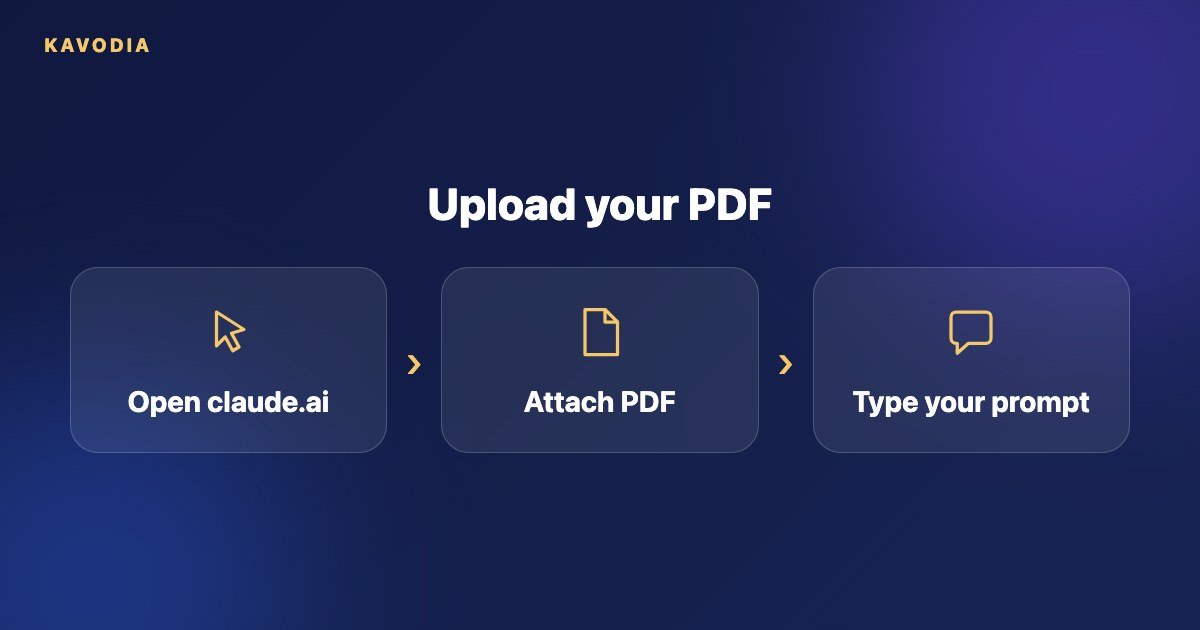
The process takes less than a minute. Open claude.ai or the Claude desktop app. Start a new conversation. Click the paperclip icon next to the message box, or drag and drop your PDF directly into the chat window. Wait until the file indicator shows the upload is complete.
Once the file appears in the prompt area, type your instruction below it. Claude will process both the file and your text together. There is no separate "analyze" button. The model reads the full document as part of the conversation context.
Let's take an example. You receive a 150-page vendor proposal in PDF format. You drag it into Claude, type your prompt, and hit Enter. Within seconds, Claude begins generating the summary based on the entire file content.
What Is the Biggest Mistake People Make When Summarizing PDFs?
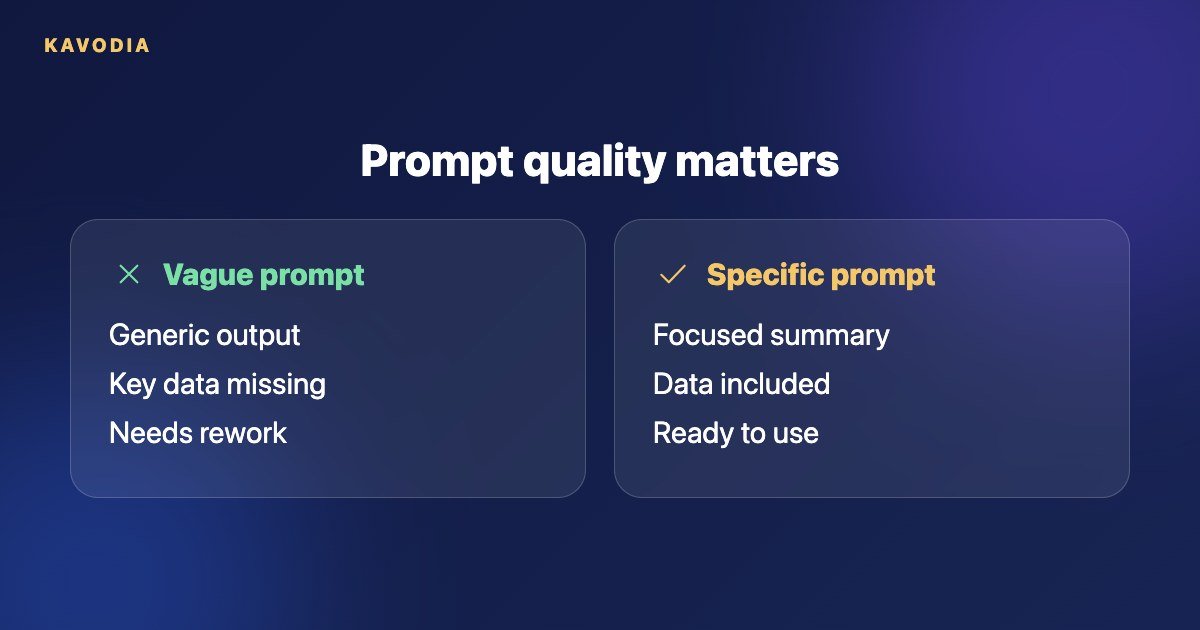
The most common error is using a vague prompt. Typing "summarize this PDF" gives Claude no direction. The model treats every section with equal weight. It might spend a paragraph on the table of contents and skip the financial projections entirely.
A vague prompt also increases the risk of hallucination. When Claude has no constraints, it may fill gaps with plausible-sounding statements that do not appear in the document. You lose the main benefit of working with a source file.
I always recommend telling Claude exactly who you are, what you need, and how you want the output formatted. A specific prompt reduces errors and saves you editing time. The difference between a generic summary and a useful one often comes down to 30 extra words in your prompt.
How Should You Structure a Prompt for a Long PDF Summary?
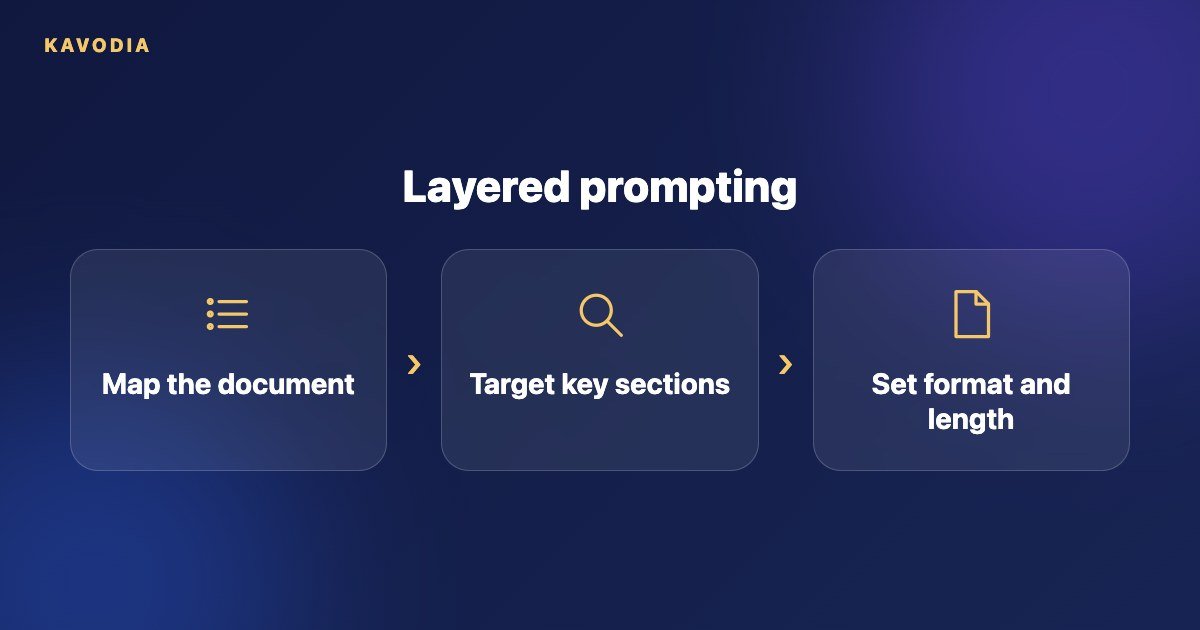
Use a layered approach. Start with a structural overview, then drill into the sections that matter. This method prevents Claude from compressing important details into a single sentence.
Step one: ask Claude to map the document first. Your prompt could look like this: "Before summarizing, list the main sections of this PDF with a one-sentence description of each. Flag any sections that seem unclear or corrupted." This gives you a table of contents generated by the model itself.
Step two: request a targeted summary. Tell Claude who will read it and what decisions depend on it. For instance: "Summarize this report for a product manager who needs to decide whether to approve the proposed budget. Focus on costs, timelines, and risks. Ignore the methodology section."
Step three: specify format and length. Ask for bullet points, numbered lists, or a maximum word count. Constraints help Claude allocate attention to the right parts of the document. I find that setting a word limit of 300 to 500 words for an executive summary produces the best results.
How Do You Verify That the Summary Is Accurate?
Verification is the step most people skip. It is also the most important one. A summary is only useful if every claim traces back to the original document. Two techniques make this practical.
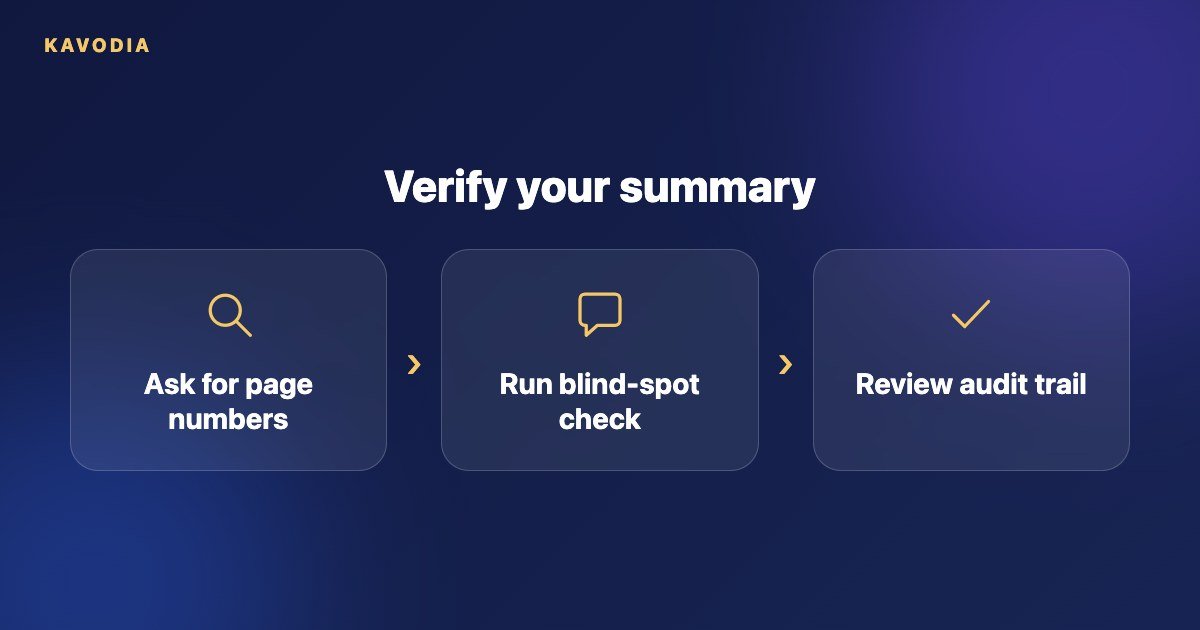
First, ask Claude to cite page numbers. Use this follow-up prompt: "For every key claim or statistic, provide the exact quote and the page number where it appears." Claude will ground each statement in the source text. If it cannot find a reference, you know that point needs manual review.
Second, run a blind-spot check. After receiving the summary, ask a simple question: "What important warnings or counterarguments did you leave out?" This forces Claude to revisit sections it may have compressed too aggressively.
Imagine you summarize a 90-page contract for a real estate deal. The summary mentions a termination clause but omits the penalty amount. The blind-spot check catches this gap before you send the briefing to your client.
Can Claude Handle Scanned PDFs and Image-Heavy Documents?
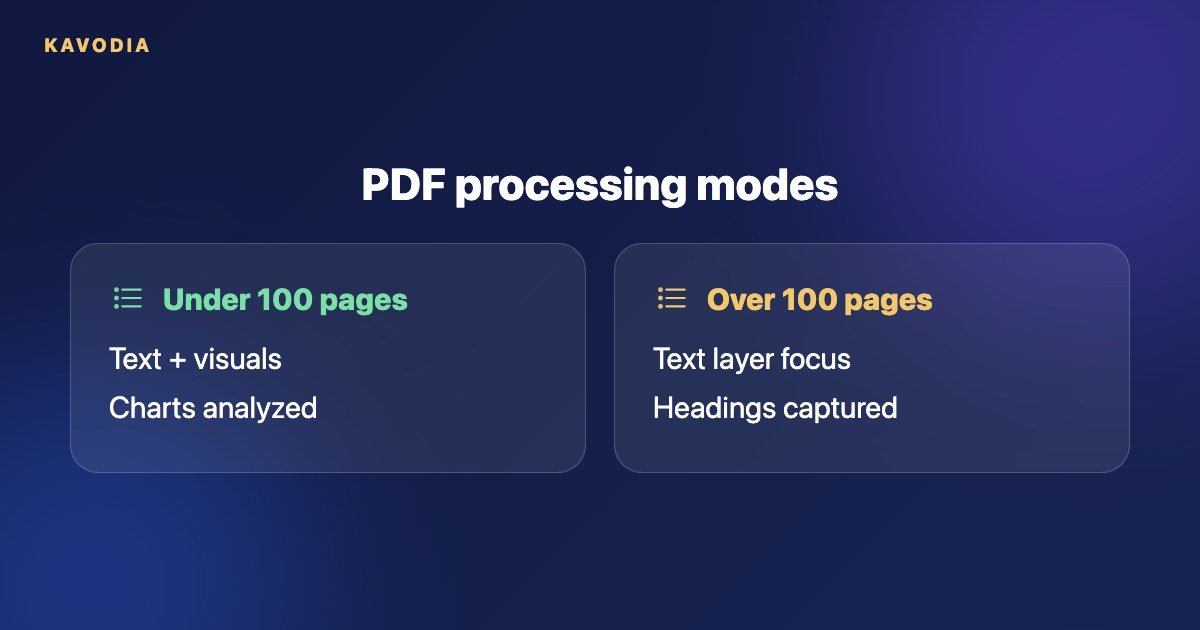
Yes, with a caveat. The Anthropic PDF documentation explains that Claude processes each page through both text extraction and vision. For documents under 100 pages, Claude reads text and understands charts, tables, and images simultaneously. For longer files, it relies more heavily on the text layer.
If your PDF is a pure scan with no embedded text layer (a photo of a printed page, for example), Claude still reads it through its vision capability. The accuracy depends on image quality. Clean scans at 300 DPI or higher work well. Blurry photos of folded pages do not.
For image-heavy reports like infographics or slide decks, I suggest keeping the page count under 100 so Claude processes every visual element. If the document is longer and mostly text, the vision path still captures headings, tables, and charts that sit within the rendered page images.
How Do You Summarize Multiple PDFs at Once?
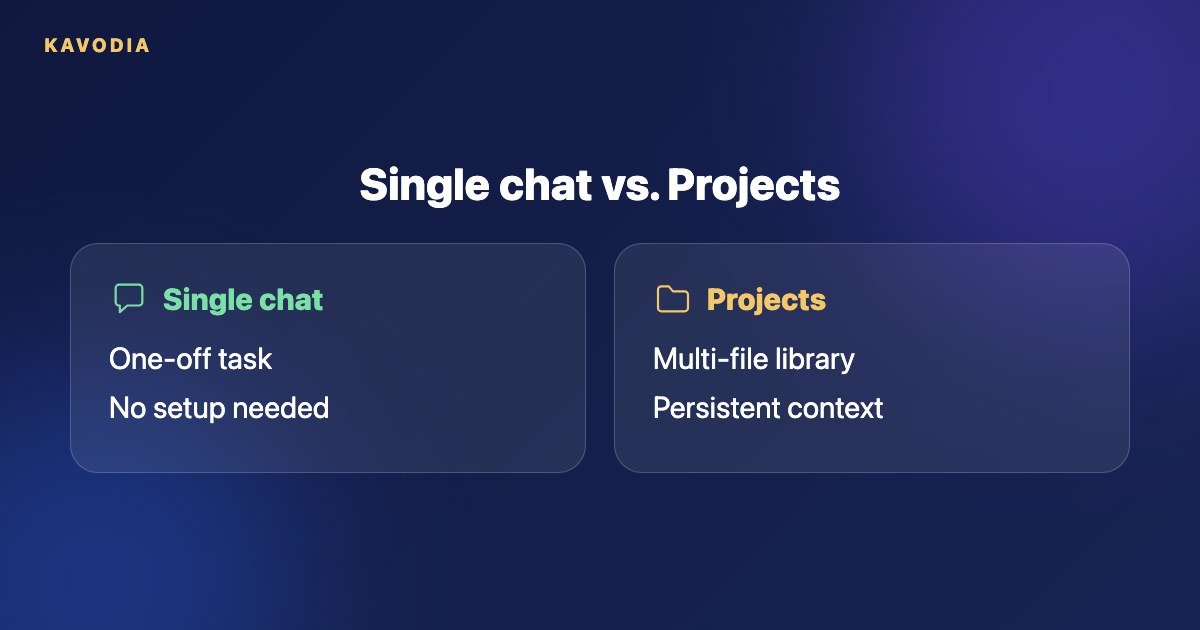
Claude Projects solve this problem. Available on paid plans (Pro, Team, Enterprise), Projects let you upload a library of files into a shared knowledge base. You can then query all of them in a single conversation without re-uploading each time.
The per-file limit in Projects is 30 MB, according to the Anthropic documentation. But you can add many files to the same project. Claude retrieves relevant sections from across the library when you ask a question.
Let's take an example. You are preparing a competitive analysis. You upload five vendor proposals into a Claude Project. Then you ask: "Compare the pricing models across all five proposals and list the key differences." Claude pulls data from each file and builds the comparison for you.
If you do not have a paid plan, you can still process multiple PDFs by uploading them one at a time into the same conversation. The context window is large enough to hold several documents, as long as their combined token count stays within the limit.
What Prompt Templates Can You Copy and Use Right Away?
Here are four templates you can paste directly into Claude after uploading your PDF.
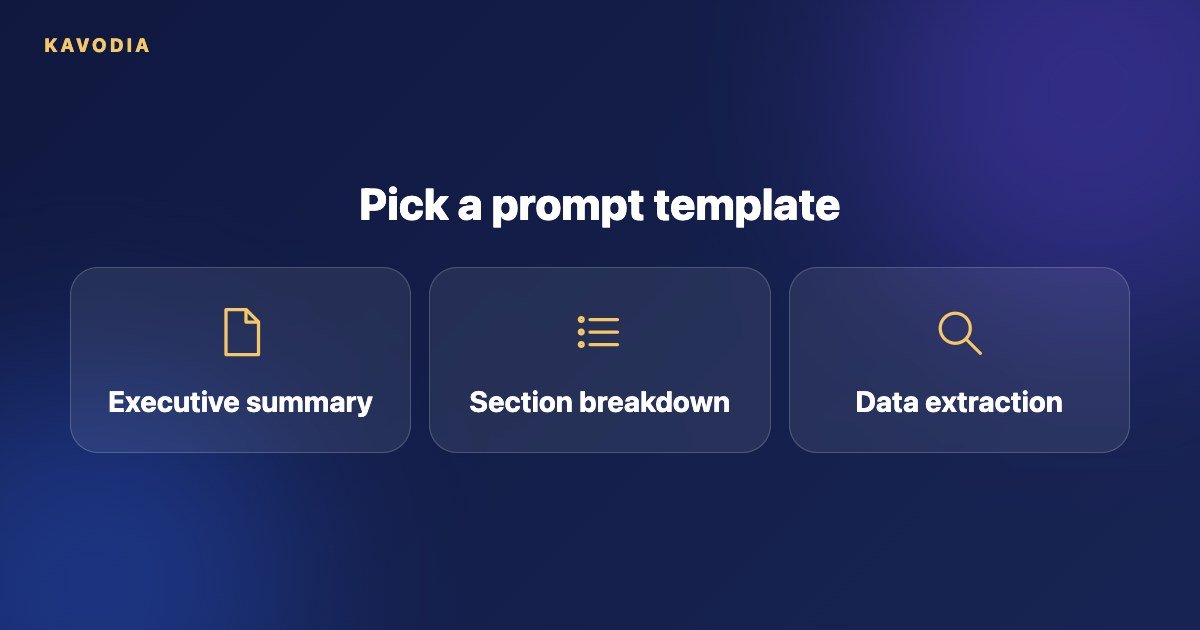
- Executive summary: "Read this PDF and provide a structured summary in under 400 words. Include the core problem, the main findings, and the final recommendations. Use bullet points for the findings."
- Section-by-section breakdown: "Summarize this document section by section. For each section, write a short paragraph with the core argument and list any key data points or statistics with their page numbers."
- Data extraction: "Extract all financial figures, dates, and percentages from this document. Organize them into a clean list sorted by page number."
- Simplification: "Explain the contents of this PDF as if I am a complete beginner. Remove jargon and break down what the document actually says in plain language."
I keep these templates in a note on my phone. When a new PDF arrives, I pick the template that fits the task and adjust two or three words. The whole process takes under five minutes.
How Do You Reduce Costs When Summarizing Large PDFs via the API?
If you use the Claude API for batch processing, token costs add up. Three strategies help you keep spending under control.
First, use prompt caching. The Anthropic documentation notes that cached input tokens cost a fraction of the standard rate. For Claude Sonnet 5.5, a cache read costs $0.10 per million tokens instead of the standard $2. If you query the same PDF multiple times with different questions, caching the document in the first request saves you money on every follow-up.
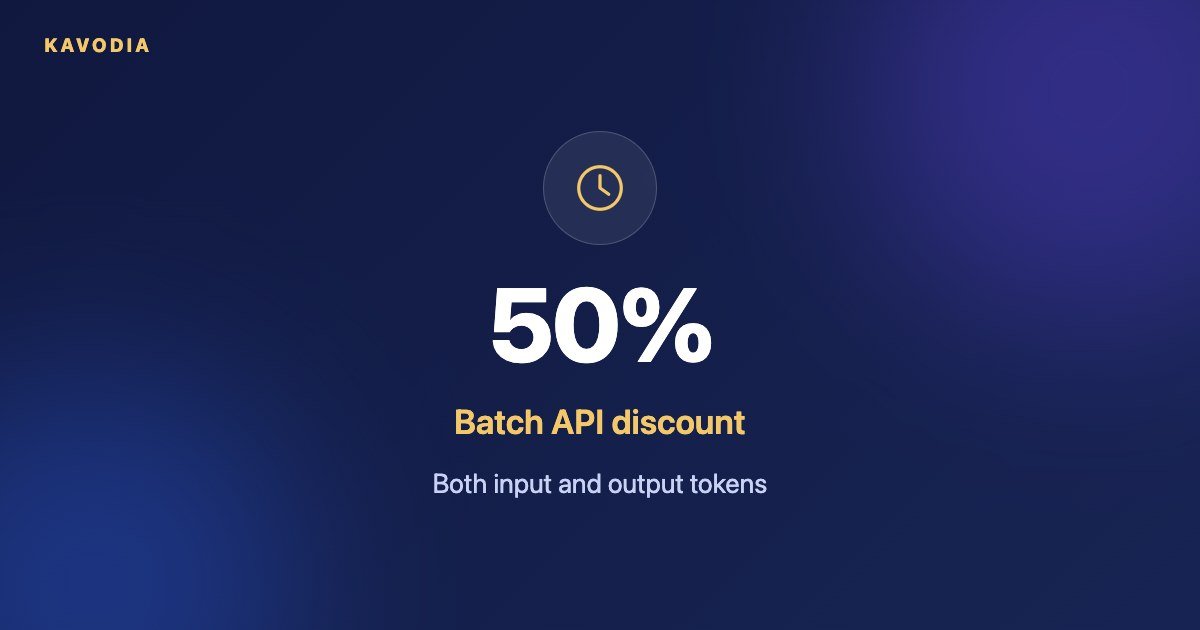
Second, consider the Batch API. Anthropic offers a 50% discount on both input and output tokens for batch requests. If your workflow can tolerate asynchronous processing (results arrive later, not in real time), the Batch API cuts your bill in half.
Third, pick the cheapest model that meets your quality bar. Haiku at $0.10 per million input tokens handles simple extractions well. Reserve Sonnet or Opus for complex analysis where accuracy matters most. I route about 70% of my PDF tasks to Sonnet and send only the high-stakes documents to Opus.
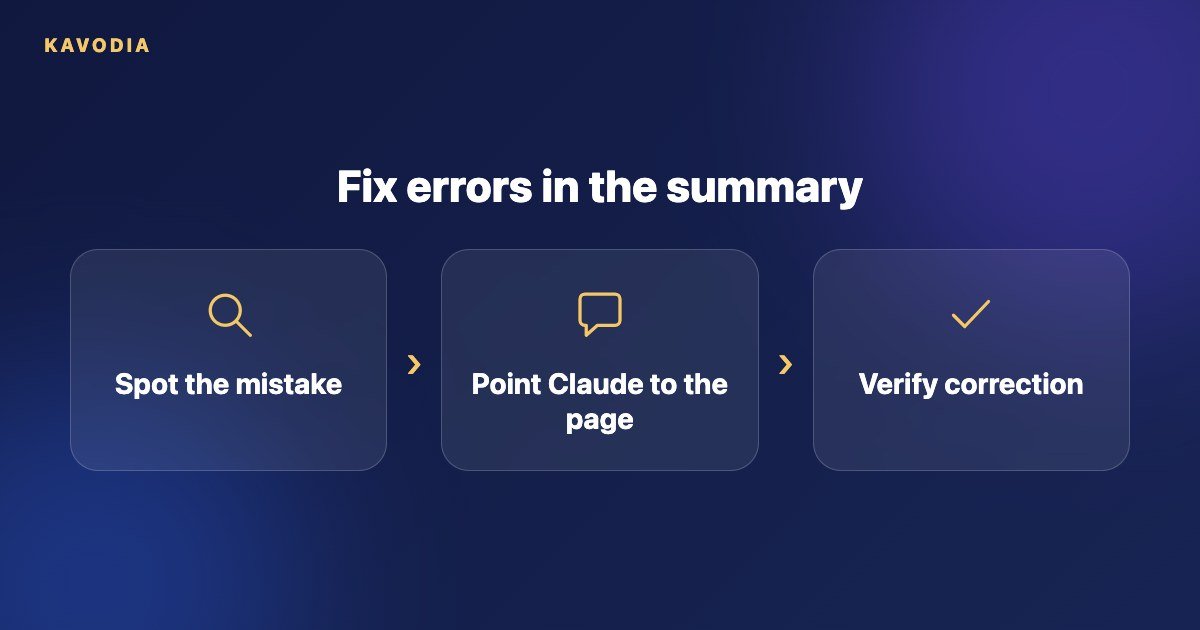
What Should You Do When Claude Gets Something Wrong?
Even with a large context window, Claude can make mistakes. The most common issues are omission (skipping a section), compression (merging two distinct points into one), and hallucination (stating something the document does not contain).
When you spot an error, do not start over. Instead, point Claude to the exact section and ask for a correction. For example: "Your summary says the project deadline is March 2027, but page 42 states April 2027. Please correct this and re-check all other dates in the summary." Claude will revisit the relevant pages and update its answer.
For critical documents, I recommend a final pass where you ask Claude to list every factual claim it made alongside the page number where it found the evidence. This creates an audit trail you can scan in a few minutes.
Frequently Asked Questions
Is Claude free to use for PDF summaries?
Claude offers a free plan on claude.ai with limited usage. You can upload PDFs and request summaries, but the number of messages per day is capped. For heavy use or API access, you need a paid plan such as Pro, Team, or Enterprise. The Pro plan provides higher message limits and access to all models.
How long does it take Claude to summarize a 200-page PDF?
Processing time depends on your internet connection and the model you choose. In most cases, Claude generates an executive summary of a 200-page document in under two minutes. Longer, more detailed breakdowns may take three to five minutes. The API is generally faster than the web interface for large files.
Can Claude summarize a PDF in a language other than English?
Yes. Claude supports dozens of languages. You can upload a PDF written in French, Spanish, German, or another language and ask for a summary in the same language or in English. The model handles cross-language summarization without needing a separate translation step.
Does Claude store my uploaded PDFs?
Anthropic's data policies vary by plan. On the free and Pro plans, uploaded files are processed for the current conversation and are not used to train models. Enterprise and API customers can set stricter data retention policies. Always review the current terms of service for your specific plan before uploading sensitive documents.
What happens if my PDF has a password or encryption?
Claude cannot open password-protected or encrypted PDFs. You need to remove the protection before uploading. Most PDF readers let you save an unprotected copy if you have the password. Once the file is open and unprotected, Claude reads it like any other PDF.