You have meeting notes in Google Docs, research papers in PDF, and bookmarked articles scattered across three browsers. Finding one specific fact means opening five tabs and skimming for ten minutes. NotebookLM changes that workflow. You upload your files into a single notebook, and the AI answers your questions using only those files. Every answer comes with an inline citation you can click to verify.
I recommend NotebookLM as a starting point for anyone who wants a private, source-grounded knowledge base without writing a single line of code. The free tier is generous enough for most small projects. In the sections below, I walk you through every step from uploading your first document to generating a podcast-style audio overview of your research.
What Is NotebookLM and Why Does It Matter for Your Documents?
NotebookLM is a free AI research assistant built by Google. It reads only the documents you provide and grounds every response in those sources. Unlike a general chatbot, it does not pull answers from the open web.
Imagine you run a small consulting firm. You drop your client contracts, your process handbook, and three quarterly reports into one notebook. When you ask "what is our refund policy for late deliverables," the answer comes straight from your handbook, with a clickable citation.
Google describes NotebookLM as a tool that lets you "gain critical insights from your most complex documents" (notebooklm.google). The source-grounded approach reduces the risk of AI hallucination. The model has no incentive to fabricate data that is not in your files.
What Types of Sources Can You Upload?
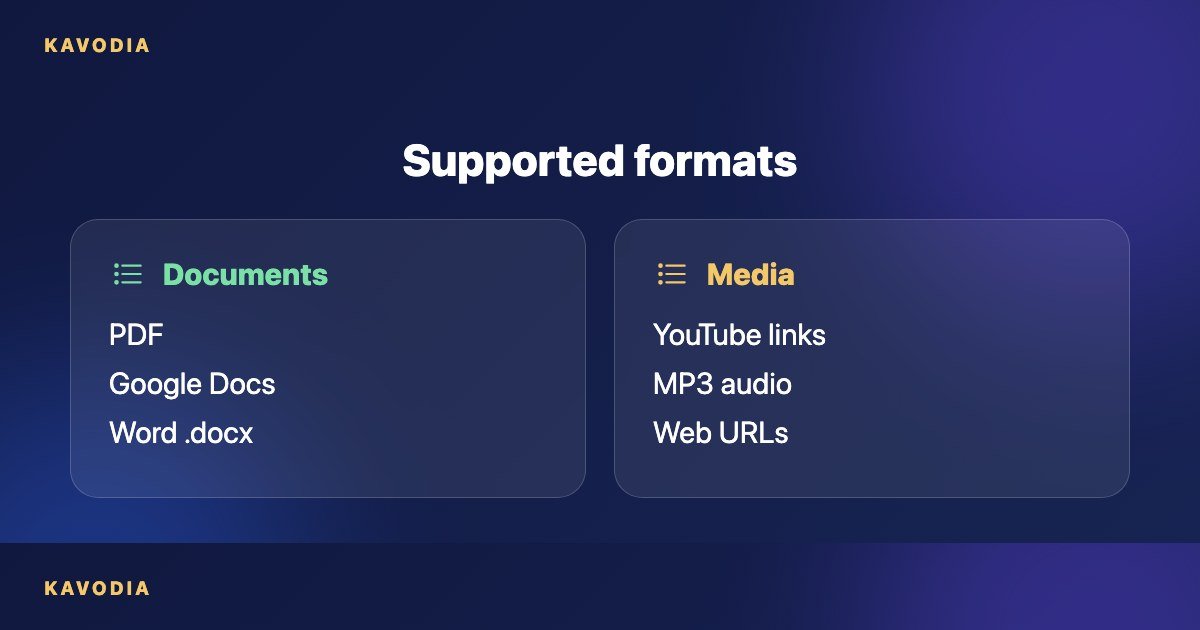
NotebookLM accepts a wide range of formats. The Google NotebookLM help center (support.google.com/notebooklm) lists the following source types:
- Google Docs
- Google Slides (up to 100 slides per presentation)
- Google Sheets (up to 100,000 tokens)
- PDFs
- Microsoft Word files (.docx)
- Plain text files (.txt) and Markdown (.md)
- CSV files
- PowerPoint files (.pptx)
- Web URLs (public pages)
- YouTube video links (transcript is ingested)
- Audio files (MP3, WAV, M4A)
- Images (JPEG, PNG, WEBP, HEIC, GIF)
- Copied and pasted text
- ePub files and eligible Google Play Books
That list covers most of the formats a small business owner or freelancer handles daily. I find the YouTube link feature especially useful for turning conference talks into searchable text.
How Many Sources and How Large Can They Be?
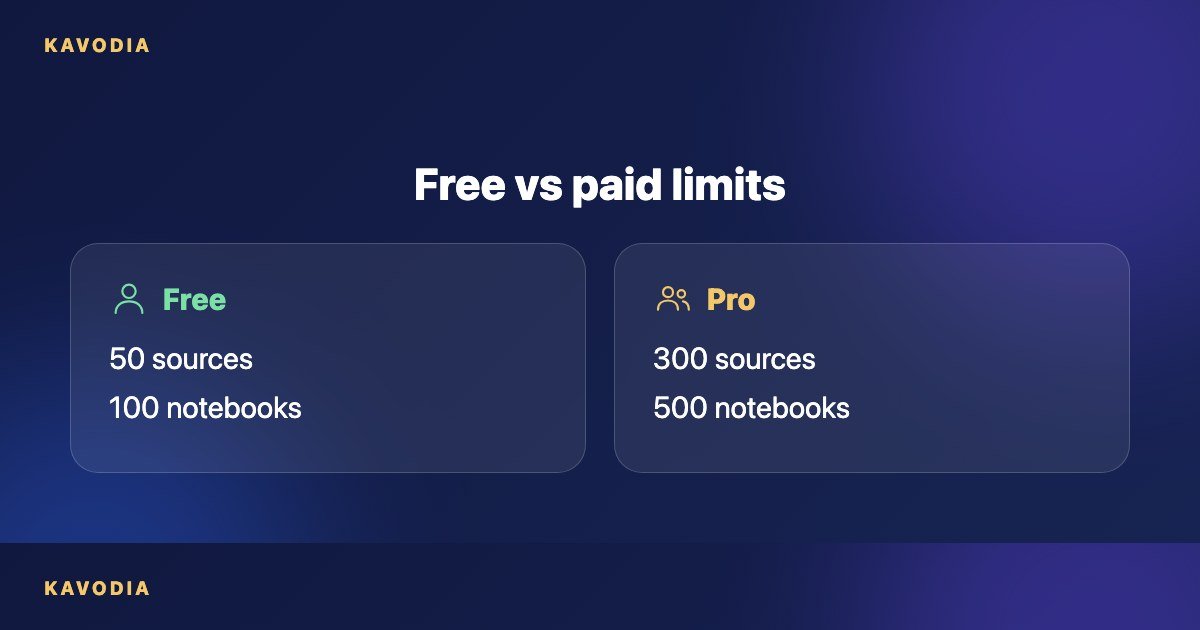
Each notebook on the free tier supports up to 50 sources, according to the Google NotebookLM help center (support.google.com/notebooklm). Each individual source can hold up to 500,000 words or 200 MB for uploaded files. Password-protected PDFs cannot be imported.
On paid tiers bundled with Google AI subscriptions, those limits grow. The Plus tier raises the cap to 100 sources per notebook. The Pro tier allows up to 300 sources per notebook. The free tier also allows up to 100 notebooks total, which means you can run many separate knowledge bases at the same time.
Imagine a marketing team that manages four product lines. Each line gets its own notebook with competitor research, brand guidelines, and campaign briefs. Fifty sources per notebook is more than enough for most departments.
How Do You Create Your First Notebook Step by Step?
Setting up a notebook takes less than two minutes. Follow these steps:
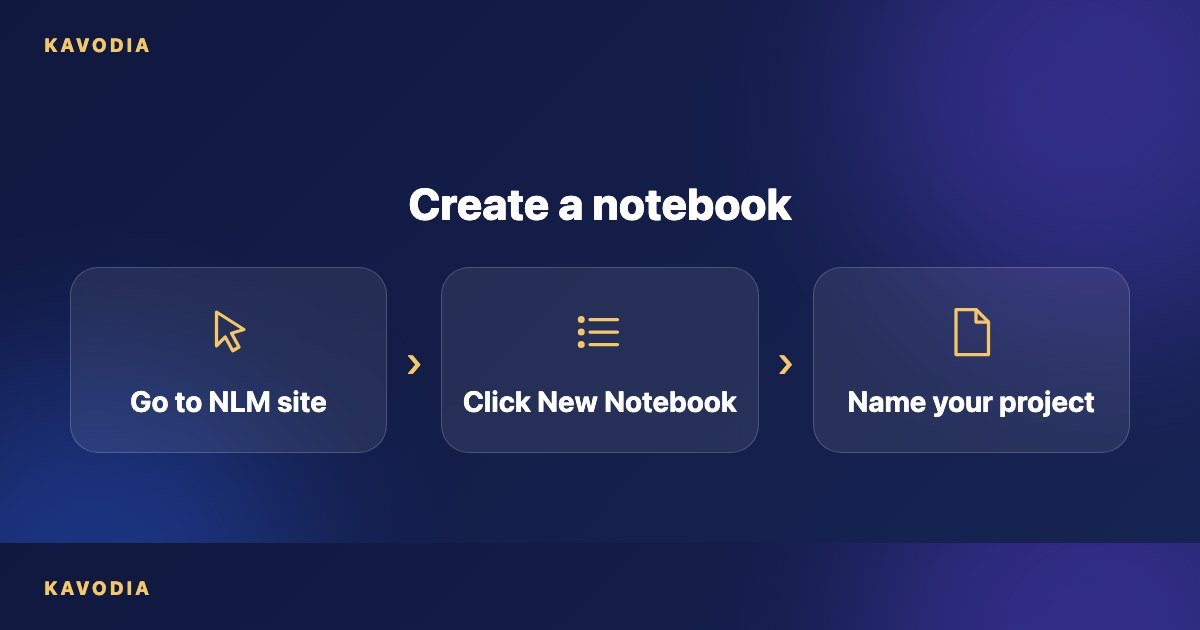
- Go to notebooklm.google.com and sign in with your Google account.
- Click "New Notebook" on the dashboard.
- Give the notebook a clear name that describes the project, such as "Q4 Marketing Research" or "HR Policy Manual."
The notebook opens with an empty source panel on the left and a chat interface on the right. You are now ready to add sources.
I suggest naming notebooks after the project rather than the date. A descriptive name saves you time when you have ten notebooks on your dashboard.
How Do You Upload Documents and Add Sources?
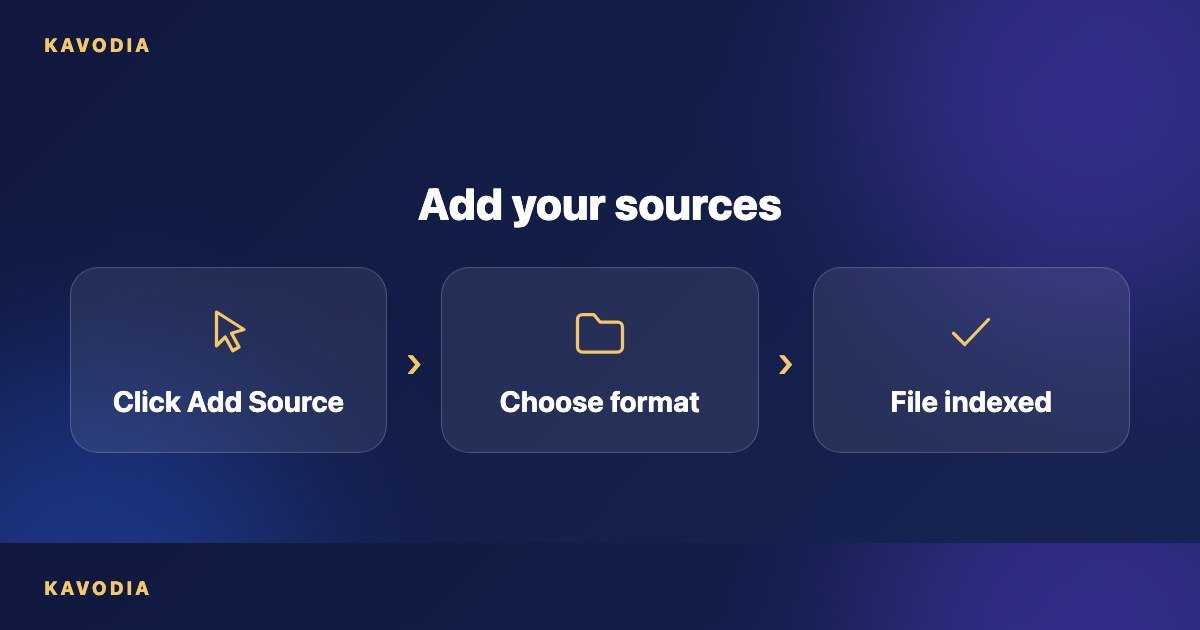
Click the "Add Source" button in the source panel. You see several options:
- Upload from your computer (drag and drop PDFs, Word files, or audio)
- Import from Google Drive (select Docs, Slides, or Sheets directly)
- Paste a web URL or a YouTube link
- Copy and paste raw text
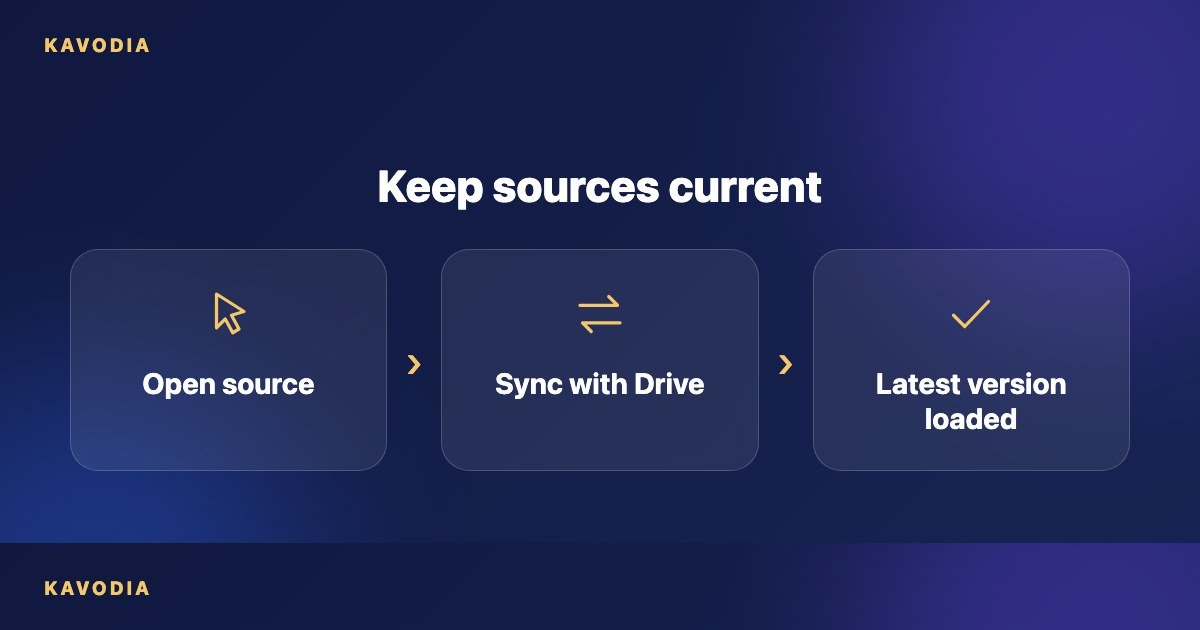
NotebookLM makes a static copy of the file at upload time, per the Google NotebookLM help center (support.google.com/notebooklm). If the original Google Doc changes later, you can re-sync it. Open the source in your notebook and click "Click to sync with Google Drive." That option requires write access to the original document.
Let's take an example. A freelance writer keeps research articles as bookmarks. She pastes each URL into NotebookLM. The tool extracts the visible text from each page and indexes it. She can now search across fifteen articles in a single query.
How Does the AI Answer Questions From Your Sources?
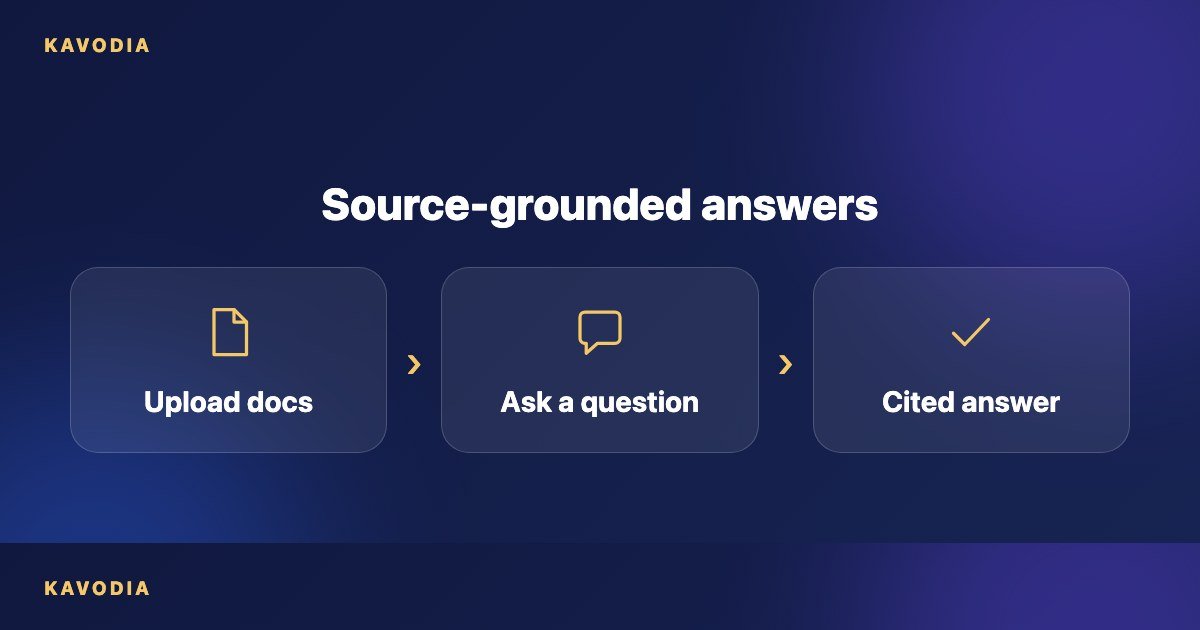
Once your sources are loaded, type a question in the chat box at the bottom of the screen. NotebookLM reads through every uploaded document and returns an answer grounded in those texts.
Every response includes inline citations. Click a citation number and the tool opens the exact paragraph in the original source. If the answer is not in your files, NotebookLM tells you it cannot find that information. This behavior is intentional. Google designed the tool so that it never fabricates facts that do not exist in the uploaded material (notebooklm.google).
Imagine you uploaded your company's employee handbook. You ask "how many vacation days do new hires get?" The answer pulls the exact line from page twelve of the PDF and highlights it. No guessing, no hallucination.
How Can You Control Which Sources the AI Uses?
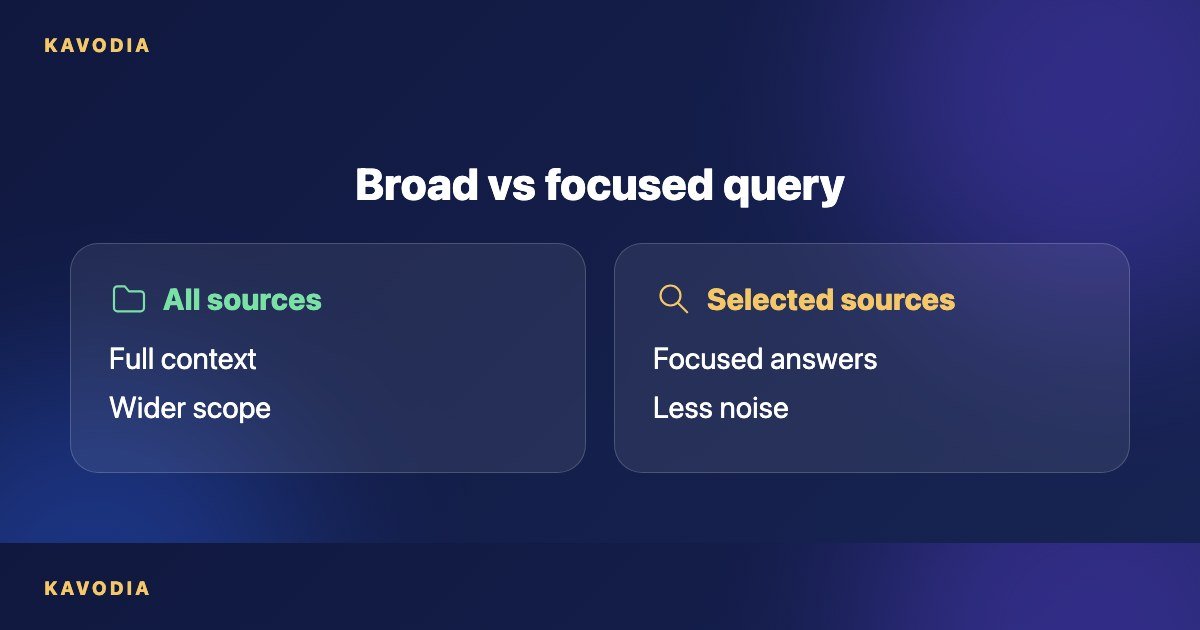
You do not always want the AI to search every document at once. The source panel lets you check or uncheck individual sources. When a source is unchecked, the AI ignores it for that query.
In practice, this is helpful when you have fifty sources but you only want answers from two specific reports. Uncheck everything else, ask your question, and the response draws only from those two files. Check the boxes again when you want a broader search.
I use this feature when I compare two competing research papers. Unchecking everything except those two documents keeps the answers focused and reduces noise.
How Do You Save Answers and Build Notes?
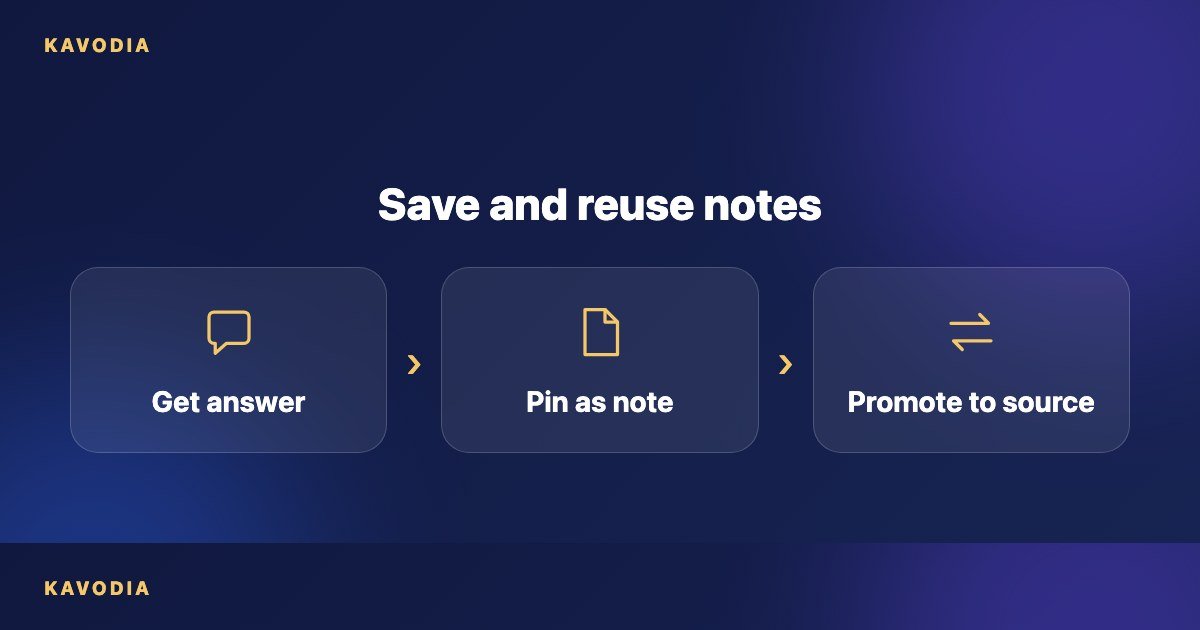
When the chat generates a useful response, you can save it as a note inside your notebook. Click the pin icon or "Save to Note" on any response. The note appears in the notes panel alongside your sources.
You can also create blank notes manually. Type your own observations, copy key quotes, or paste a quick summary. Over time, your notes panel becomes a curated reference that captures the best insights from your documents.
On top of that, you can convert a saved note into a new source. Once promoted, that note is available to the AI for future queries. This creates a feedback loop where your own analysis becomes part of the knowledge base.
What Can You Generate Beyond Chat Answers?
NotebookLM goes beyond simple question and answer. The tool can generate several structured outputs from your sources:
- Study guides and briefing documents
- FAQ pages based on your uploaded material
- Timeline breakdowns of events found in your files
- Flashcards and practice quizzes for learning
- Mind maps and structured outlines
These features make it useful not only for business research but also for learning. Students preparing for exams or teams onboarding new employees benefit from the same tools. Imagine a startup founder who uploads the company's pitch deck, financial model, and competitive analysis. She asks NotebookLM to generate a briefing document. The result is a cited two-page summary she can hand to a new advisor.
What Is the Audio Overview Feature and How Does It Work?
Audio Overviews turn your uploaded documents into a podcast-style conversation. Two AI-generated hosts discuss and summarize the key points from your sources. You can choose different styles, such as a brief summary, a critique, or a debate format.
According to Google (notebooklm.google), the audio is generated entirely by AI. The hosts do not bring in outside information. Every claim they make comes from your uploaded files. Google also notes that Audio Overviews can occasionally contain mispronunciations or minor inaccuracies, so I recommend listening with a critical ear and verifying any claim that sounds unexpected.
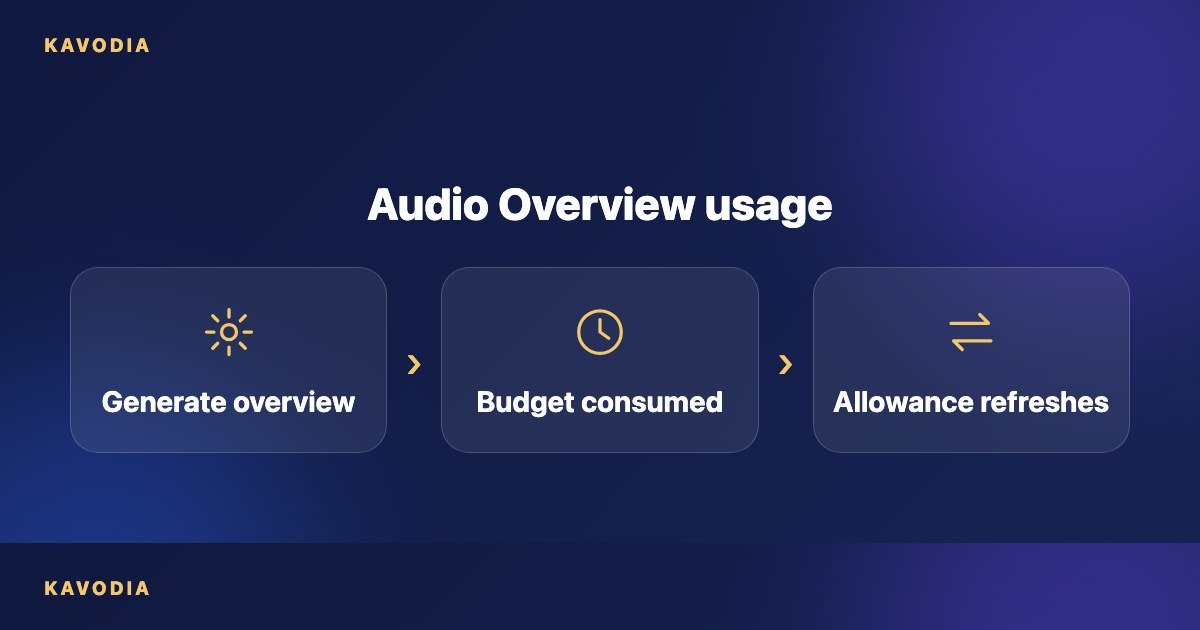
Audio Overviews and chat queries draw from the same compute-based usage allowance. Each generation uses a significant portion of your active budget. The allowance refreshes on a rolling basis, and paid tiers multiply the ceiling. You can check your remaining balance in Settings under Usage. If you hit the limit, a "Generate later" option queues your request until budget space opens up.
How Should You Organize Multiple Notebooks for Different Projects?
Resist the urge to put everything in one notebook. Separate your knowledge bases by topic or project. A consulting firm might have one notebook for client contracts, another for internal SOPs, and a third for market research.
Keeping contexts separate helps the AI deliver precise answers. When a notebook holds only HR documents, the model does not get confused by unrelated financial data. It also makes collaboration easier because you can share one notebook with your legal team without exposing marketing materials.
Here is a practical setup for a small agency:
- Notebook 1: client briefs and brand guidelines
- Notebook 2: internal processes and templates
- Notebook 3: competitor research and industry reports
- Notebook 4: training materials for new hires
I keep my notebooks under ten sources each when possible. Smaller, focused notebooks return faster, more accurate answers.
How Do You Keep Your Knowledge Base Up to Date?
NotebookLM ingests a static copy of each source at the time of upload. When the original file changes, the notebook does not update automatically. You have two options to stay current.
For Google Drive files, open the source in your notebook and click "Click to sync with Google Drive," as described in the Google NotebookLM help center (support.google.com/notebooklm). The tool pulls the latest version. For non-Drive files, delete the outdated source from the panel and upload the revised version.
Set a reminder to review your knowledge base once a month. Remove documents that are no longer relevant and add fresh material. A stale knowledge base gives stale answers.
What Are Common Mistakes to Avoid?
Building a knowledge base is straightforward, but a few missteps can reduce the quality of your results:
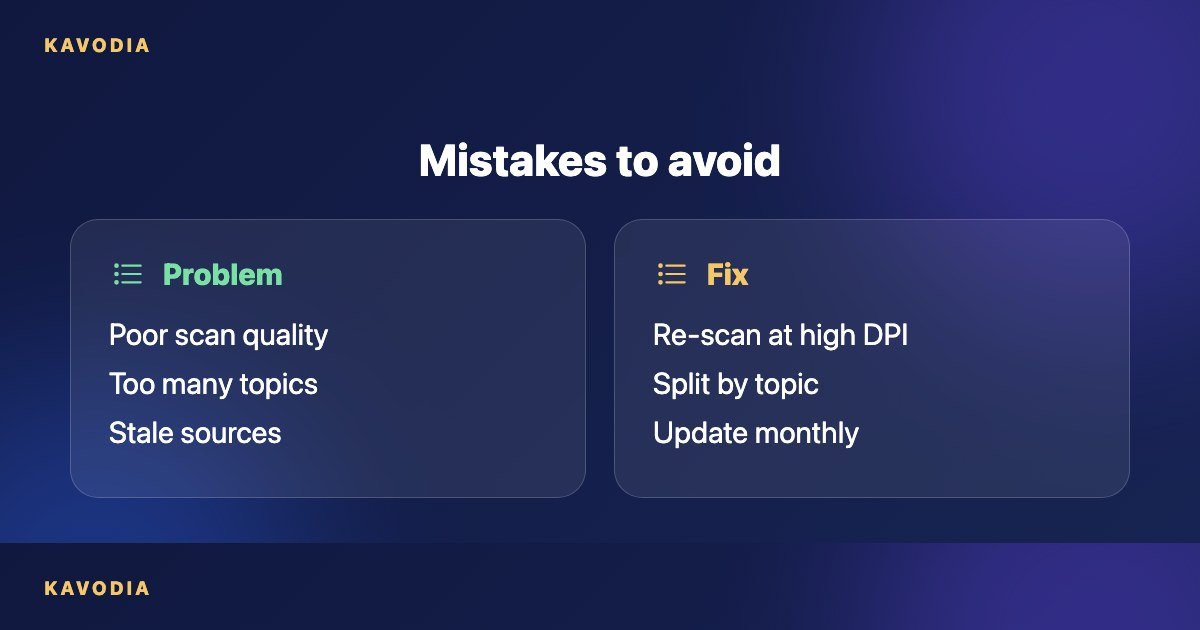
- Uploading scanned PDFs with poor image quality. The text extraction fails and the AI cannot read the content. Re-scan at a higher resolution before uploading.
- Dumping too many unrelated documents into one notebook. The AI context gets noisy. Split by topic instead.
- Ignoring citations. Always click the citation link to verify the original passage. The AI is grounded, but context matters.
- Forgetting to update sources. A handbook from two years ago does not reflect current policy. Sync or re-upload regularly.
- Uploading password-protected PDFs. NotebookLM cannot import them. Remove the password first.
Imagine a team that uploads fifty documents from five departments into one notebook. When someone asks about the travel reimbursement policy, the AI pulls a sentence from a budget memo instead of the HR handbook. Splitting notebooks by department prevents that confusion.
Frequently Asked Questions
How much does NotebookLM cost?
The core product is free with a Google account. Paid tiers are bundled into Google AI subscription plans. The Plus tier starts at roughly $4.99 per month. The Pro tier is roughly $19.99 per month. Paid plans increase source limits, notebook counts, and Audio Overview compute allowance. The free tier is enough for most solo professionals.
Can I share a notebook with my team?
Yes. NotebookLM supports sharing with permissions similar to Google Drive. You can invite collaborators to view or edit a notebook. Shared users can query the same sources and add their own notes. This makes it a practical tool for small teams working on the same project.
Does NotebookLM work with languages other than English?
NotebookLM processes documents in many languages because it runs on Google's Gemini model. You can upload sources in French, Spanish, or German and ask questions in the same language. The quality of answers depends on the clarity of the source text and the language coverage of the underlying model.
What happens if I reach the 50-source limit?
You can create a second notebook and split your sources between the two. Each notebook operates independently. If you need more than 50 sources in a single notebook, upgrading to a paid tier raises the cap to 100 or 300 sources depending on the plan. Alternatively, combine several short documents into one larger file before uploading.
Can NotebookLM read handwritten notes?
NotebookLM supports image uploads in JPEG, PNG, WEBP, HEIC, and GIF formats. If your handwritten notes are photographed clearly, the AI can attempt to read them. Results vary depending on handwriting legibility. For best results, use a scanning app that converts handwriting to typed text before uploading.