
OpenAI is retiring custom GPTs from ChatGPT. The official migration path moves your instructions and knowledge files into a plugin, but it leaves out custom actions, model selection, and sharing settings. I recommend approaching this transition based on what your team actually uses, rather than relying on the migration button alone.
Imagine your assistant drafts client proposals using internal documents and checks your order management system. Moving the documents to a plugin would not restore the connection to your order system. You need to verify instructions, knowledge files, external connections, and team access separately.
When Are Custom GPTs Being Retired?
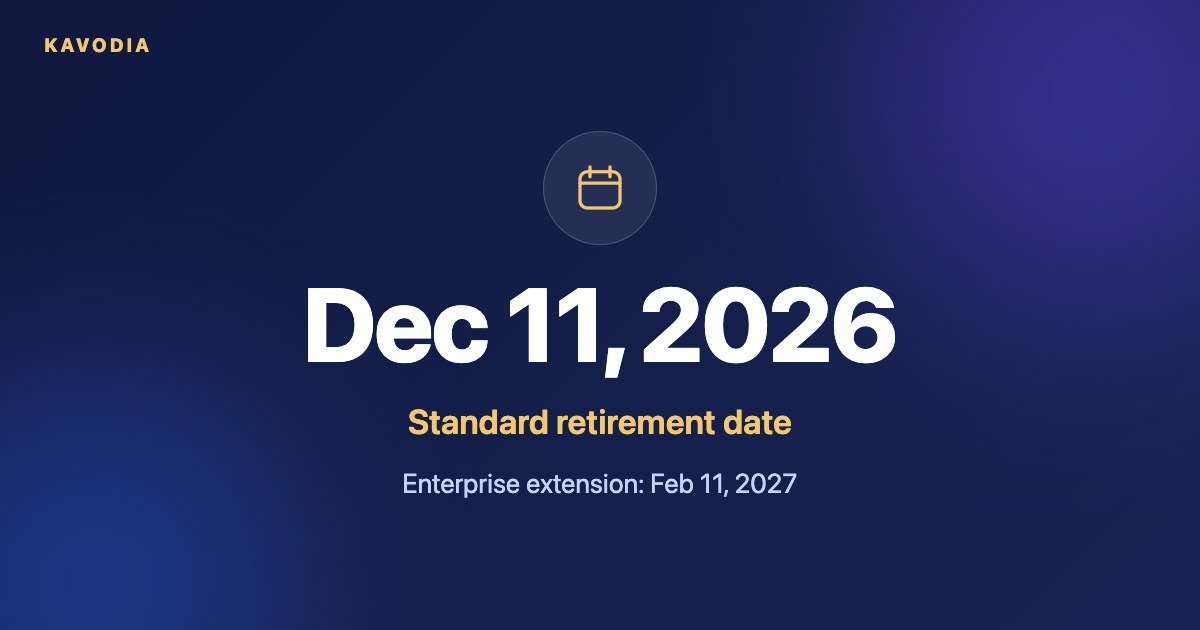
The standard retirement date for custom GPTs is December 11, 2026, according to the OpenAI FAQ. Some Enterprise workspaces with an approved extension have until February 11, 2027. Your account notification remains the definitive reference, because the announced schedule can vary by workspace.
The retirement removes custom GPTs and their pages entirely. It does not simply block the creation of new assistants. Until the applicable retirement date, existing GPTs remain usable under the permissions already in place. Distinguish between the end of creation, the availability of migration, and the shutdown of existing assistants.
The timeline depends on the account or workspace where the GPT was created, as OpenAI explains. Using an assistant from your personal account does not necessarily assign that account's timeline to the GPT. This distinction matters when you use a public GPT created in another organization's Enterprise workspace.
Imagine your team relies on an assistant built by a partner to answer questions about their services. Your own subscription does not tell you when that assistant will stop working for your team. Ask the partner which timeline applies to their workspace and what replacement they plan to offer.
I recommend keeping a record for each useful assistant: the applicable notification, the responsible person, and the work it supports. This simple inventory prevents you from treating a general announcement as a certainty for every account in your organization. Add the specific task involved, so you know immediately what to prepare if access ends.
Do not confuse a target rollout date with a guarantee that the migration is already available for your account. The FAQ states that access to the migration tool may arrive at different times. You can prepare content and tests before the option appears, without assuming the transfer is ready.
What Gets Transferred to the Plugin?
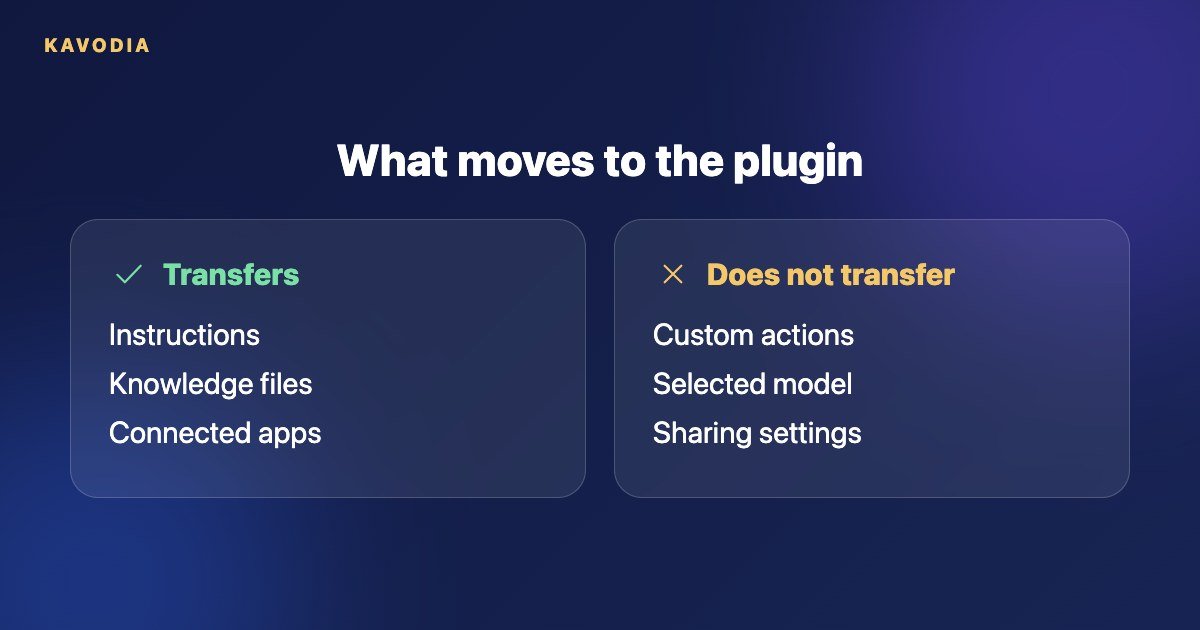
The planned migration carries over instructions, knowledge files, and connected apps from your custom GPT. Instructions become a skill, while documents become reference files in the new plugin. Custom actions, the selected model, and sharing settings are not included in this transfer.
A plugin can combine reusable instructions, reference documents, and connected apps to accomplish a task. This does not mean every component of your old assistant works automatically after migration. The migration FAQ explicitly distinguishes connected apps from custom actions, which require separate handling when they exist.
The skill corresponds to the instructions that guide the work, not a complete copy of your former assistant. Whether it activates may depend on your prompt and the capabilities available in your environment. OpenAI notes that an installed skill is not necessarily used automatically for every message you send.
Imagine your GPT turns sales notes into structured proposals following a brand guide stored in its files. The instructions and the brand guide can follow the migration path for instructions and knowledge. You still need to verify that the plugin actually applies that skill when you request a new proposal.
The model selected in your GPT does not follow the transfer, even if the instructions remain identical. In Enterprise workspaces, the organization's default settings apply after migration. A different response does not necessarily mean a document is missing. Your comparison should consider multiple possible causes.
The new plugin starts as private. Migration does not install it for anyone on your behalf. Your regular users do not automatically receive the permissions needed to access your assistant in its new form. I treat the content transfer, the installation, and the sharing as three distinct verifications, each with an observable result.
How Do You Start Migrating Your GPT?
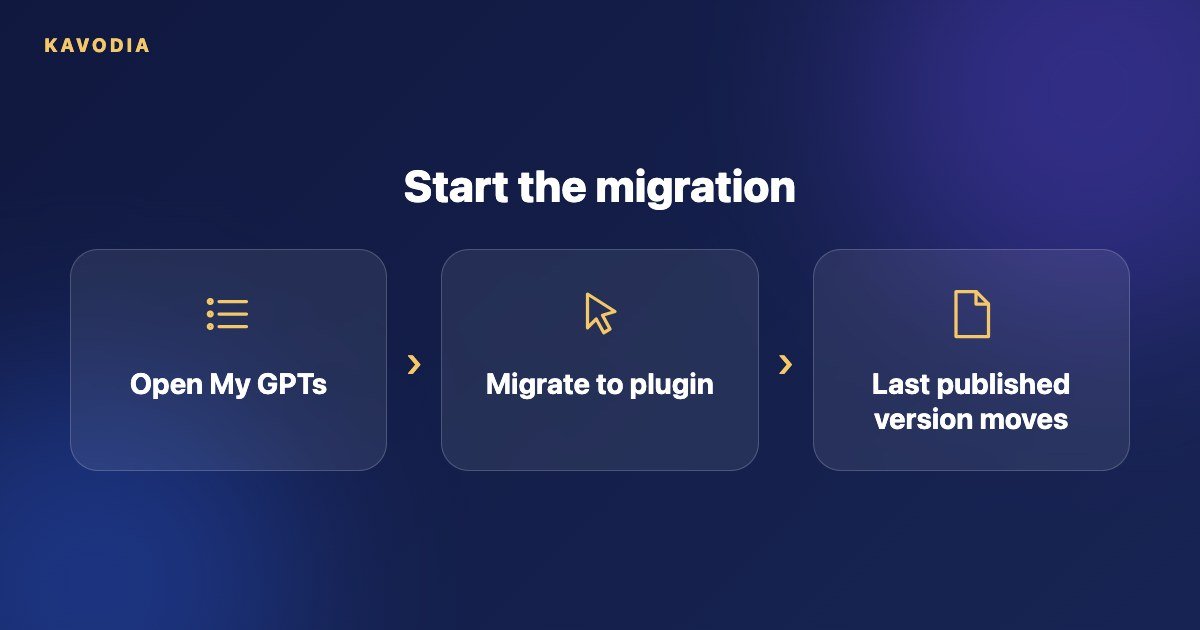
When the migration option is available on your account, open "My GPTs" and select "Migrate to plugin" for the GPT you want to transfer. Review the information shown before confirming. The transfer uses the last published version, not your drafts or unpublished edits.
Start by reviewing the instructions and identifying any essential changes that should still be integrated. The FAQ recommends finishing these edits before migrating, because the original GPT becomes read-only afterward. Publishing the version to be transferred does not require making your assistant publicly available outside your organization.
Gather the original documents you used to build the assistant's knowledge base. Adevweb advises keeping instructions and files outside the tool to maintain control over the content. I consider this a sound organizational method, without presenting it as a guarantee of automatic reconstruction elsewhere.
Imagine your assistant uses an outdated sales deck while a corrected version sits in your drafts. Launching migration without completing that update would transfer the published version, not the one you intended. Preparation here means identifying the correct document, then verifying its presence in the replacement after transfer.
Keep representative prompts and their expected outputs ready for your comparison between the GPT and the plugin. Choose examples that let you evaluate a useful result, rather than easy questions with no business impact. A client proposal, a document summary, or an objection response reveals more differences than a simple greeting.
After the plugin is created, review the instructions and files before assigning it any important task. Then check its installation and the permissions required for any connected apps in your actual work environment. The migration confirmation message indicates a transfer, not a complete validation of your workflow.
Why Is the Migration Option Not Showing Up?
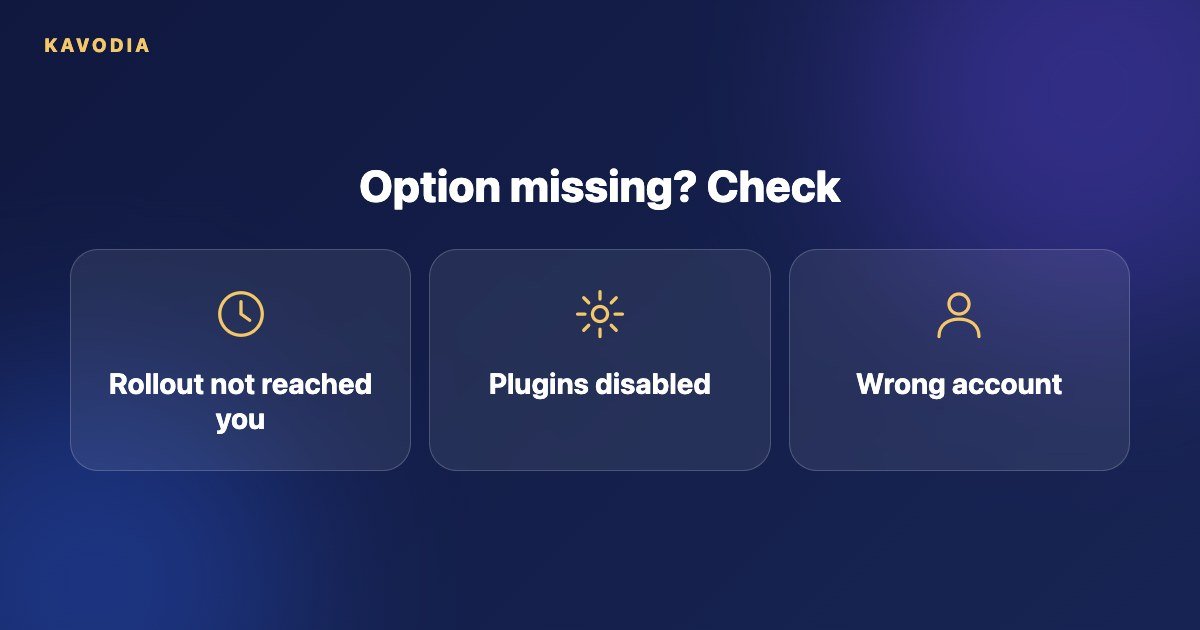
The missing option may result from a rollout that has not reached your account yet, disabled plugins, or the account you used to access the GPT. First, check the notification and the workspace where the assistant was created. The right to use a GPT does not give you the right to migrate it, even when you access it regularly.
In an Enterprise workspace, an administrator may also perform the migration when the required settings are enabled. The official FAQ asks you to verify plugin availability, GPT publication status, and the responsible person's permissions. Before repeating attempts, clarify your role: creator, authorized administrator, or regular user.
Imagine you find your GPT listed in a workspace different from the one where you originally configured it. You might continue using it without having the migration options available from that workspace. Return to the creation account and check its migration notice before concluding that the assistant has a problem.
If you work in an organization, give the administrator a precise description of what you observe. Mention the GPT, its creation workspace, your role, and the absence of the expected migration button. Avoid sending unnecessary internal documents along with your request.
A missing migration option does not prevent you from preparing the items you are allowed to access. You can inventory the use cases, locate original documents, and define expected results for future tests. This preparation makes the diagnostic faster once the migration option does reach your account.
I advise against rebuilding your entire assistant just because a button is missing from your interface. Start by separating an availability issue, a permissions issue, and a configuration limitation. Then decide whether you need to wait, request an intervention, or organize an alternative way of working.
What Happens to Custom Actions and Old Conversations?
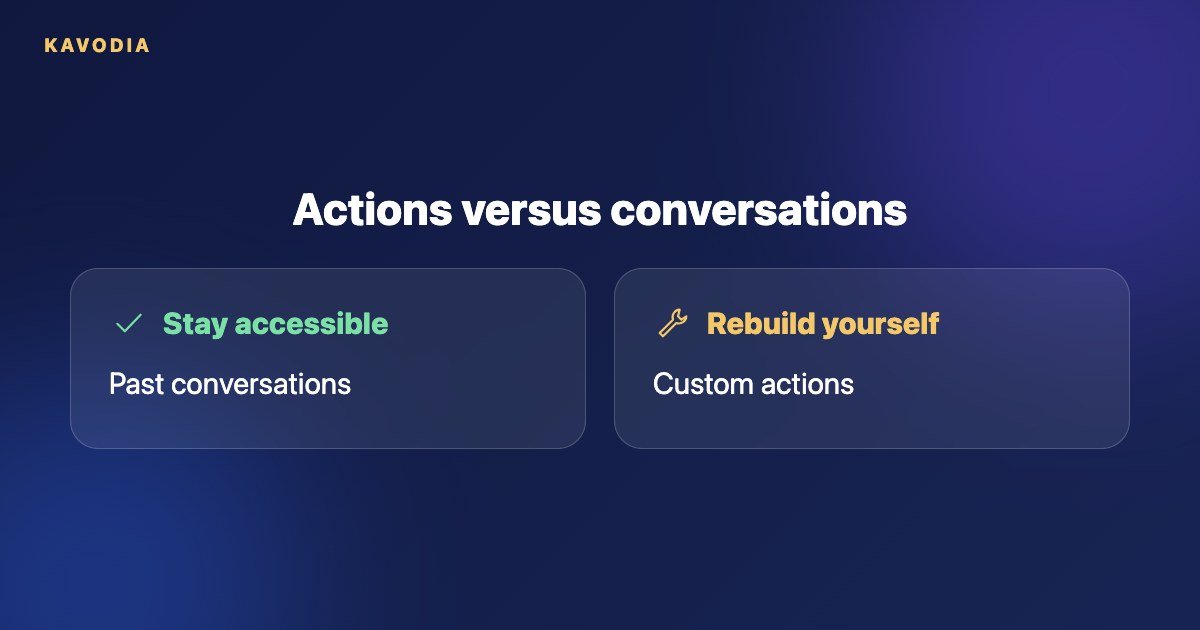
Custom actions are not transferred automatically, while existing conversations will remain accessible after the announced retirement. These are different outcomes: a business integration may need rebuilding, but your past exchanges do not disappear. OpenAI states that no action is needed to preserve access to conversations already held with custom GPTs.
A custom action allows the GPT to communicate with an external service through an integration built for that purpose. If your work depends on that connection, the affected functions will not work in the plugin without a replacement. Transferring the instructions that describe the action is not enough to recreate the technical connection and its associated permissions.
Imagine your assistant checks the status of an order before drafting a response for your client. After migration, it could keep the drafting rules without being able to retrieve the status from your business software. A well-written response would not prove the order was actually checked in the expected system.
The official approach is to verify whether an available app covers the expected tasks before pursuing a technical rebuild. That rebuild may require a custom MCP server and depends on the capabilities offered by your account or workspace. For a non-technical entrepreneur, the right decision is to clarify the need before requesting development work.
The Developers Digest guide details the technical side, but you can start with a code-free description. Specify what information must be retrieved, what operations are allowed, and what result should return to the conversation. Also have someone identify the limits of the new connection, because OpenAI advises against assuming full equivalence with the original action.
Regarding conversations, keep in mind the difference between preserving them and moving them into another workspace. Prompt Optimizer states that exchanges created with a GPT do not transfer directly into a Project. Its claim that old conversations are lost contradicts the official FAQ. The preservation announced by OpenAI is the reference here.
Can a ChatGPT Project Replace Your Custom GPT?
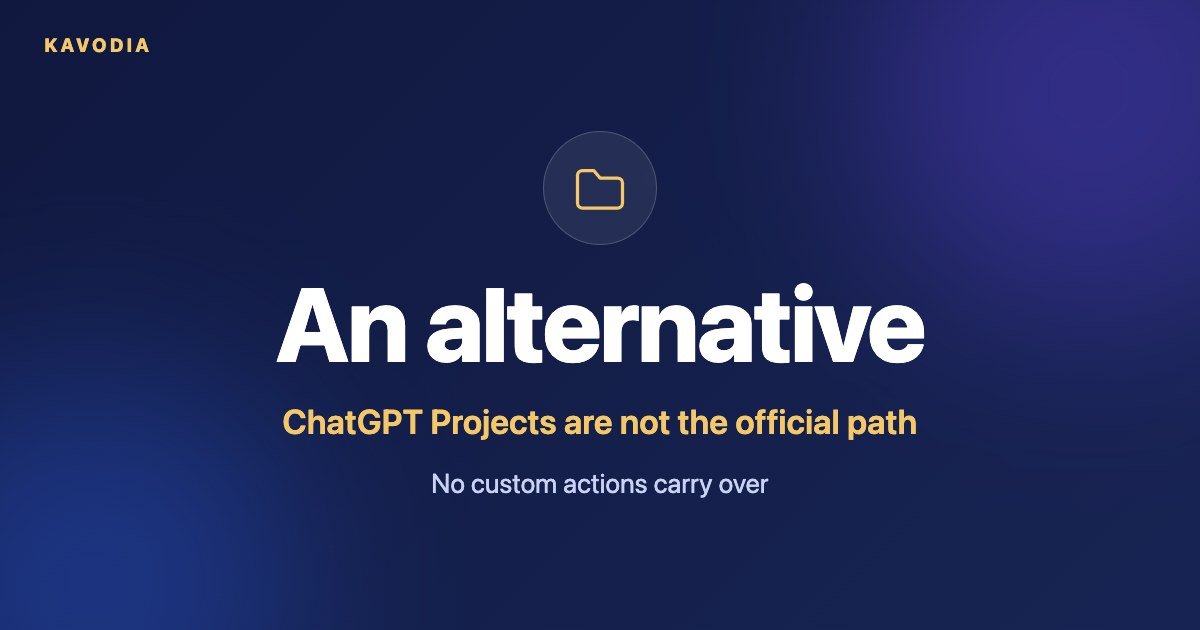
A ChatGPT Project can serve to rebuild a workflow based on instructions, documents, and grouped conversations. It is not the official migration path to plugins and does not carry over custom actions. I would treat it as an alternative organization to evaluate, not as a guaranteed identical replacement.
Prompt Optimizer describes a manual rebuild: create a Project, add the instructions, and import the files. This approach may suit personal document-based work that does not depend on a custom business integration. It still requires reviewing the working rules and checking the limits applicable to your account before transferring content.
Imagine your GPT helps you write a newsletter from notes and an editorial guide. You could try that same task in a Project by keeping the authorized documents and the necessary editing rules. The deciding factor would be the quality achieved on your usual prompts, not just the resemblance between the two interfaces.
Rewrite the instructions around the expected outcome: recipient, output format, information to use, and elements to avoid. The Projects guide recommends replacing vague descriptions with concrete rules about the requested work. An instruction like "produce a professional text" is less useful than one specifying the tone and the expected structure.
Do not use this rebuild to bypass access restrictions on instructions or documents belonging to someone else's assistant. If you lack the necessary content, ask the creator what they are willing to share. You can write your own working rules without claiming to have recovered the exact configuration of a GPT you only used.
The choice between a Project and a plugin should follow the functions you need to keep for your activity. For a custom action, the Project does not solve the connection issue identified in the migration documentation. For document-based work, compare the results, file constraints, and sharing options before choosing an approach.
How Do You Test the Replacement Before Switching?
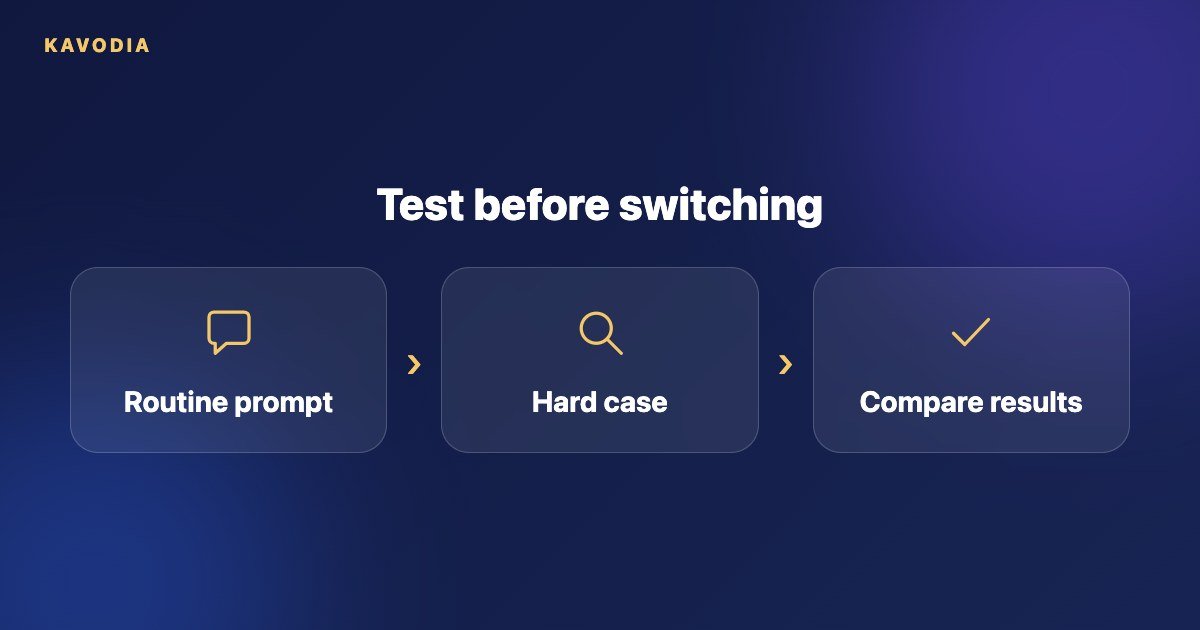
Compare the replacement with your GPT on routine prompts and on a more challenging case relevant to your activity. Check the instructions followed, the documents used, the output format, and the connections needed for the requested work. Test rebuilt integrations separately, because a well-written answer does not prove they are functional.
I start by defining what makes a response acceptable before launching a comparison between assistants. For a summary, that might be the presence of expected information and the absence of claims not found in the provided documents. For a client proposal, the check focuses on client requirements, structure, and the limits of the offer.
Imagine your assistant prepares answers using a product catalog and a support policy. A simple prompt checks whether it retrieves explicit information. An ambiguous prompt tests how it handles uncertainty. You are looking for reliable behavior, not a word-for-word match with what the original GPT produced.
Record the prompt, the expected result, and the observed gap in a table your team can review easily. A note like "poor response" tells the person fixing the replacement very little. Prefer a precise observation, such as a missing condition from the document or a format different from what was requested.
If the skill does not seem to activate, examine its selection before rewriting all of the plugin's instructions. OpenAI indicates that a mention can help select a plugin or skill, depending on the interface. Distinguish a skill that is poorly triggered from a skill that is correctly selected but applies the rules incorrectly.
For an external integration, verify that the result actually comes from the expected service and matches the intended permissions. A rebuilt connection may have a different scope than the original action, even if it has a similar name. Ask the responsible person to confirm which operations are covered, then test real scenarios before the team switches.
Can You Migrate a GPT Created by Someone Else?
You cannot migrate a GPT simply because its creator gave you the right to use it. Migration belongs to the creator or, under the Enterprise path, to an administrator with the required access. Check the GPT's notification and the creator's guidance regarding a replacement.
A public link does not guarantee access to the plugin that will eventually replace the assistant your team has been using. The GPT's sharing settings are not carried over automatically, and the new plugin starts as private. You need to verify the replacement's availability for your own users, rather than assuming continuity from the old link.
Imagine your team uses a consultant's GPT to prepare files and standardize sales documents. The consultant may migrate the assistant without having organized plugin sharing with your team. Your preparation consists of obtaining usable access and clear instructions, not just confirmation that the migration is complete.
Ask the creator what task the replacement covers, how to access it, and what limitations apply. This conversation also helps uncover a dependency on an assistant whose actual owner nobody recognizes. If you receive no answer, prepare your work from your own documents and your own business rules.
Avoid promising your colleagues that you can reproduce every function of an assistant external to your organization. Some capabilities may rely on private documents, special permissions, or a connection you do not control. The reasonable goal is to maintain your activity, even if that means temporarily simplifying the workflow rather than copying an unfamiliar assistant.
For people who use your own GPT, prepare a clear communication about its replacement in return. Distinguish the content transfer, the access setup, and the actual availability of useful functions for each audience. This detail prevents a migration announcement from being interpreted as a guarantee of immediate access for all former users.

How Do You Share the Plugin with the Right Permissions?
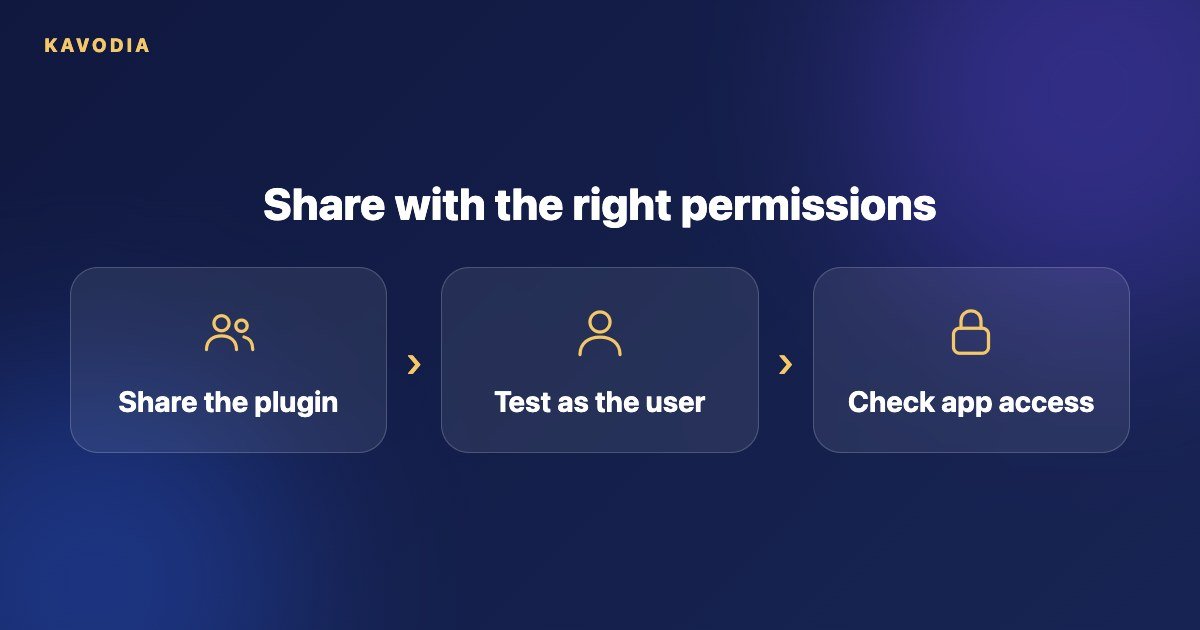
Sharing deserves its own verification, even when the plugin responds correctly from the creator's account. In an Enterprise workspace, sharing with individuals or groups and publishing in the directory involve distinct permissions. The FAQ also distinguishes the rights required to use plugins from the policies that authorize or govern their installation.
Imagine your manager sets up the plugin and sends its link to the person handling client responses. A successful test from the manager's account does not prove that person can install and use the replacement. Have a representative task performed from the intended user's account, with their own permissions and the normally accessible documents.
Included apps continue to require their own access rights, account authorizations, and the approvals needed for the requested operations. Installing the plugin does not grant new rights to files or data in the connected service. If a user encounters a refusal, check the permissions in the connected service as well, not only in ChatGPT.
I advise presenting access as part of the expected outcome, rather than as a final administrative detail. An assistant that works for its creator but remains inaccessible to the team does not truly replace the previously shared workflow. Record who maintains the plugin, who can edit it, and how to report a problem without unnecessarily sharing internal documents.
For public distribution, migration does not replace the separate plugin submission process. Do not promise automatic publication to everyone who used your public GPT. Instead, prepare a message explaining the work covered, the verified access conditions, and how to find the replacement when it becomes available.
How Do You Plan for Continuity When Migration Is Incomplete?
The useful question is not just whether you have migrated, but what work remains possible after the transfer. I suggest linking each essential use case to an expected result, a responsible person, and an authorized temporary solution. This method lets you decide whether you can start using the replacement or must still handle some tasks differently.
Imagine a business whose assistant drafts a client email after checking an order and the delivery terms. The instructions and delivery terms are available in the plugin, but the connection to the order system still needs rebuilding. The manager can decide to check the order personally and provide only the information needed for the draft.
This temporary solution is not a complete migration of the old action and should not be presented as one. It separates the lookup work from the drafting work, with a designated person verifying the data provided. Before adopting this arrangement, confirm that internal rules allow passing this information to the replacement your team uses.
Define the situations where it is better to pause usage of the replacement rather than produce an uncertain response. A missing document, an incorrect authorization, or an untested connection can prevent the expected result. The user should know whom to contact when the assistant lacks the elements needed to handle the request properly.
Keep a reference copy of the instructions and documents in a location authorized by your organization. This copy serves to understand changes and to rebuild your workflow, without assuming universal compatibility. The backup advice offered by Adevweb becomes a concrete continuity practice, rather than a promise of total technical independence.
The switch can be decided once the useful functions, expected results, and actual access have been verified. If some limitations are accepted, state clearly which ones and which person handles the operations not covered. You will then know what your new assistant can do, instead of measuring success by the file transfer alone.

Frequently Asked Questions
Does my GPT disappear right after migration?
No. The original GPT remains usable until its applicable retirement date, but it becomes read-only after migration. Its creator can no longer delete it. Imagine you need to correct your sales instructions: you would now maintain the replacement plugin, rather than edit the already-migrated GPT.
Do I need to make my GPT public to migrate it?
No. Publishing the version used for migration does not require sharing your assistant publicly. The transfer uses the last published version and does not include unpublished edits. Imagine an internal assistant: you can prepare the version to transfer while keeping access restricted to your organization.
Will my old conversations be lost?
No. OpenAI states that existing conversations with custom GPTs will remain accessible after their retirement, with no preservation steps required from you. This does not mean they transfer into the plugin. Imagine an old client exchange: keeping access and continuing the work in the replacement are separate operations.
Does a ChatGPT Project carry over custom actions?
No. The Project rebuild described by Prompt Optimizer does not carry over your GPT's custom actions. The plugin migration path does not transfer them automatically either. Imagine an order lookup: that connection requires a tested and verified solution before it can be reused in your workflow.
How do I know if my team can use the plugin?
Ask a team member to install the replacement and complete a representative task using their own permissions. Also verify the authorizations for the required connected apps, because the migration does not carry over sharing settings. Imagine a document assistant: its creator may pass a test while a colleague still lacks the required permissions.
What should I do if the migration button never appears?
Check whether plugins are enabled in your workspace and confirm the GPT's creation account. The rollout schedule varies by account. Prepare your content inventory and test scenarios in the meantime, so you are ready as soon as the option becomes available.