ChatGPT is a text tool. It does not export a .pptx file from a regular chat window. Yet you can still use it to build a full slide deck from any block of text. The trick is to pair ChatGPT with a method that feeds its output into PowerPoint or another slide tool.
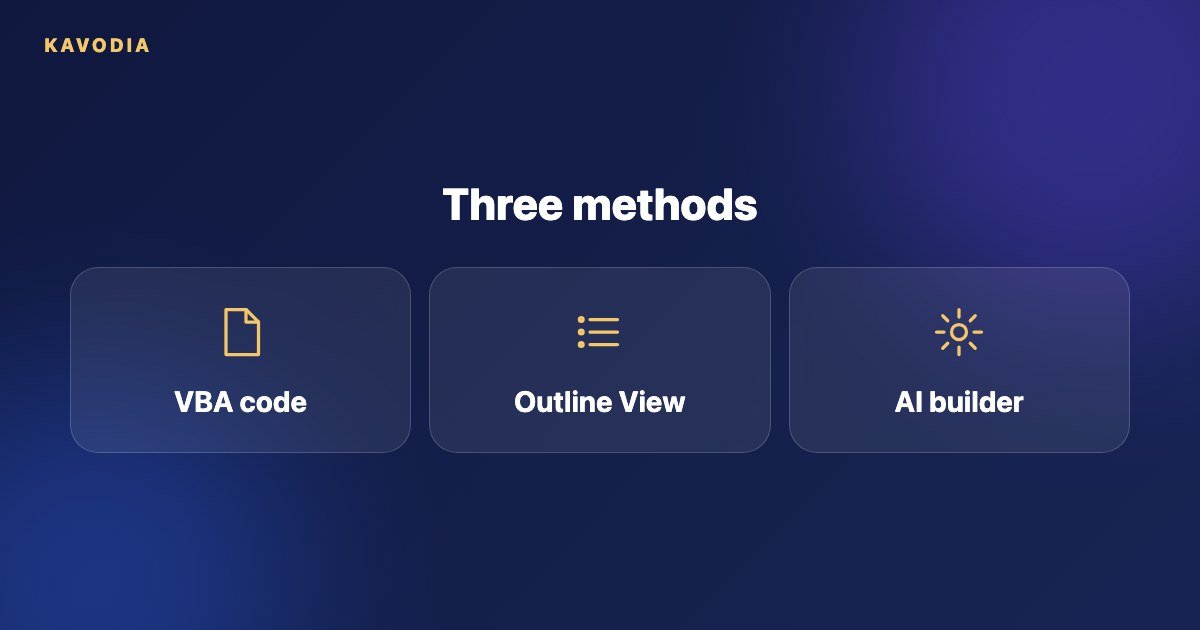
Three methods work well: VBA code pasted into PowerPoint, the Slides from Outline import, and AI presentation builders like Gamma. Each one takes a different path, but they all start with the same step: giving ChatGPT a clear, detailed prompt.
I recommend starting with the VBA method if you have Microsoft PowerPoint installed. It is the fastest option and keeps everything on your computer. If you prefer polished visuals without manual formatting, an AI builder is a better fit.
Why can you not export a PowerPoint directly from ChatGPT?
ChatGPT generates text, not file packages. According to the Microsoft Open XML documentation, a .pptx file follows the Open XML standard. It is a ZIP package that contains XML parts, media files, and layout definitions organized in folders like ppt/slides/ and ppt/slideLayouts/. The standard chat interface cannot assemble that structure and offer it as a download.
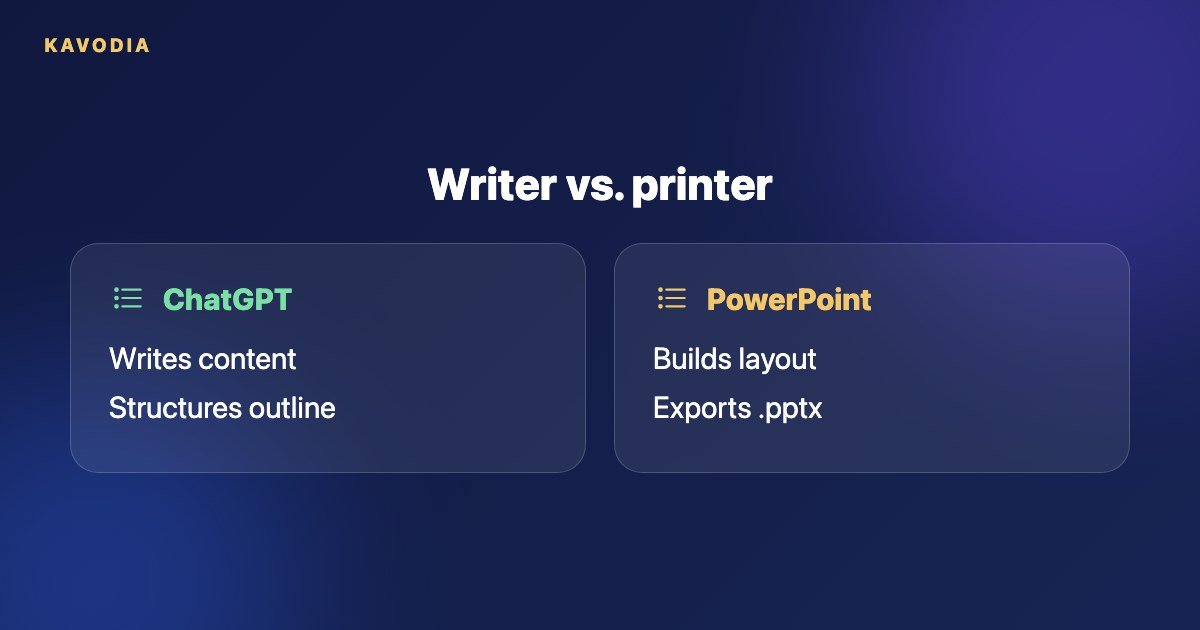
That limitation is not a dead end. It just means you need one extra step between ChatGPT and your finished deck. Think of ChatGPT as the writer and PowerPoint as the printer. You write the content in the chat, then move it into the tool that handles layout and formatting.
Imagine a startup founder preparing a pitch. She types her talking points into ChatGPT, gets a structured outline, and drops it into PowerPoint. The whole process takes under ten minutes with any of the three methods below.
What do you need before you start?
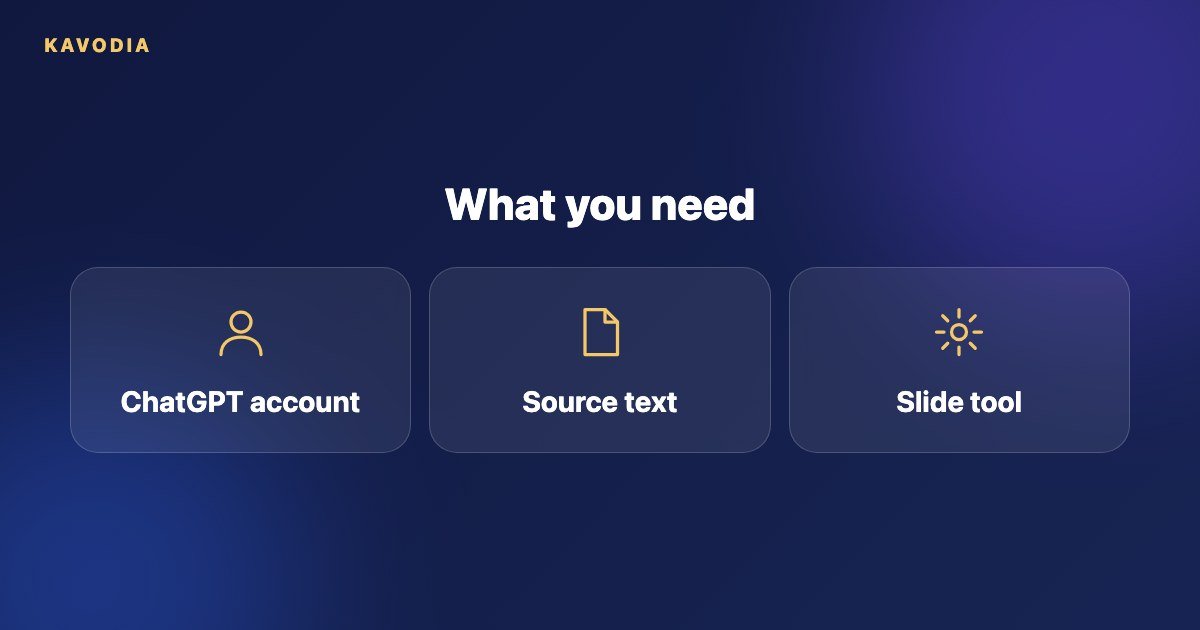
You need two things: a ChatGPT account and a way to build slides. For the VBA method, you need Microsoft PowerPoint on your computer. For the Outline View method, you also need Microsoft Word to format headings before importing. For the AI builder route, a free account on Gamma is enough.
Gather the text you want to turn into slides. It can be meeting notes, a report, a blog draft, or raw bullet points. The clearer your source text, the better ChatGPT will structure it. If your text is vague, the slides will be vague too.
I suggest keeping your source text under 3,000 words for a single prompt. Longer texts work better when split into sections, a technique I cover further down in this guide.
How do you write a prompt that produces usable slides?
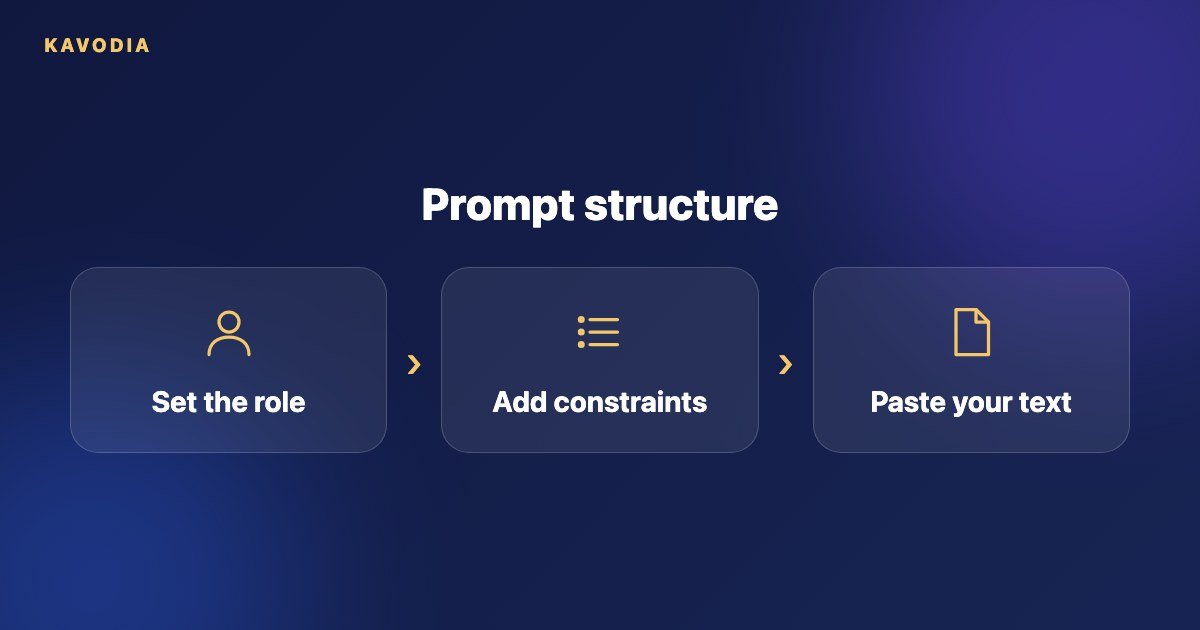
A good prompt tells ChatGPT exactly what you want. Specify the number of slides, the audience, the tone, and the format. The OpenAI prompt engineering guide calls this writing clear instructions: include details about length, style, and output structure so the model does not have to guess.
Here is a prompt template you can copy and adapt: "Act as a presentation designer. Take the text below and turn it into a 7-slide outline. Each slide has a title (under 8 words) and 3 bullet points (under 12 words each). The audience is non-technical managers. Tone: professional but conversational." Then paste your source text right after.
I find that adding a constraint on bullet point length keeps slides readable. When you skip that detail, ChatGPT tends to write full sentences that crowd the slide. Imagine a sales team preparing a quarterly review. The prompt "summarize Q3 results" gives generic output. The prompt "create 8 slides for non-technical executives, max 3 bullets of 10 words each, focus on revenue and churn" gives a deck you can actually present.
How does the VBA code method work step by step?
This is the fastest approach. You ask ChatGPT to write VBA code that PowerPoint can run to create slides automatically. No coding knowledge is required on your end. You copy, paste, and press one button.
The Microsoft documentation for the Slides.AddSlide method shows how VBA creates a new slide at a specified index using a CustomLayout object. ChatGPT can generate a full macro that calls AddSlide for each slide in your outline, sets the title text, and adds bullet points to the body placeholder.
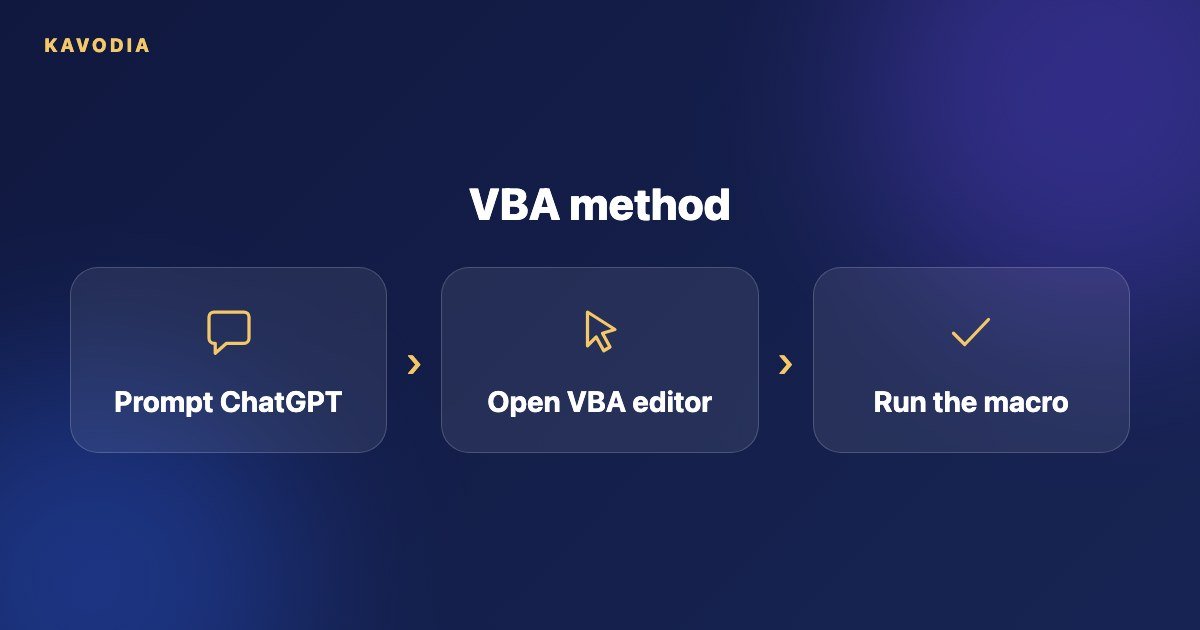
Start by prompting ChatGPT: "Write VBA code that creates a 7-slide PowerPoint presentation about [your topic]. Include a title slide and content slides with a heading and bullet points. Use the Slides.AddSlide method." ChatGPT will output a block of code. Copy the entire code block.
Open a blank presentation in Microsoft PowerPoint. Open the Visual Basic for Applications editor from the Developer tab. In the top menu of the VBA editor, click Insert, then Module. A blank window appears. Paste the code ChatGPT gave you into that window. Run the macro. Close the VBA window. Your slides are now populated with titles and bullet points.
What should you do if the VBA code throws an error?
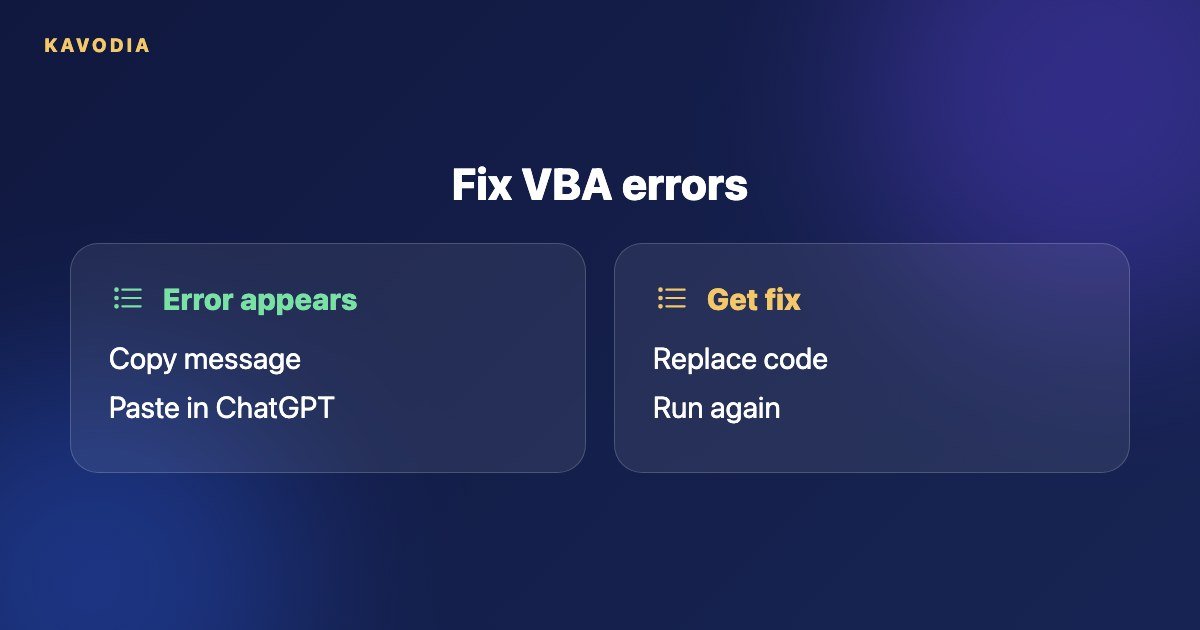
Copy the exact error message from the PowerPoint VBA window. Go back to ChatGPT and paste it with the instruction "Fix this VBA error:" followed by the message. ChatGPT will return a corrected version of the code. Paste the new code into the same module after removing the old code, then run it again.
Imagine you run the code and PowerPoint shows "Compile error: Expected End Sub." That usually means a closing line is missing at the bottom of the script. ChatGPT can spot this in seconds and provide a fixed version. The key is to paste the full error message, not a paraphrase of it.
If the second attempt also fails, check that you copied the full code block. A partial paste is the most common cause of repeated errors. I recommend selecting the entire code block in ChatGPT and confirming the last line reads "End Sub" before pasting.
How does the Outline View method work?
This approach skips code entirely. You ask ChatGPT to format your text as a structured outline, then import it into PowerPoint using the Slides from Outline feature described in the Microsoft Support documentation.
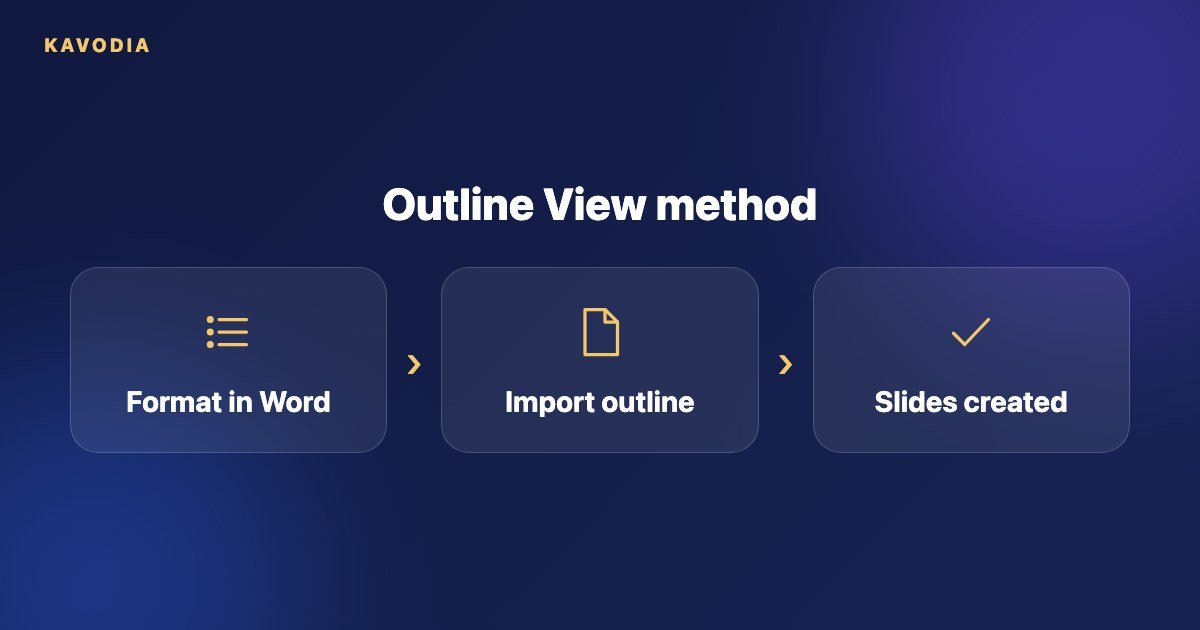
Prompt ChatGPT: "Based on the text below, create an outline for a PowerPoint presentation. Format each slide title as a Heading 1 line and each bullet point as a Heading 2 line. Do not add filler or commentary." Copy the entire output that ChatGPT produces.
Open Microsoft Word and paste the text. Make sure each slide title uses the Heading 1 style and each bullet uses Heading 2. According to the Microsoft Support guide, text formatted as Heading 1 becomes the slide title and Heading 2 becomes a first-level bullet point. Save and close the Word file. Open PowerPoint, click the drop-down arrow on New Slide on the Home tab, then select Slides from Outline, and pick the Word file you saved.
I prefer the Word route because it gives you a chance to review the structure before importing. You can also use a plain .txt file with tab indentation, but the heading approach in Word gives cleaner results.
How do AI presentation builders fit into this workflow?
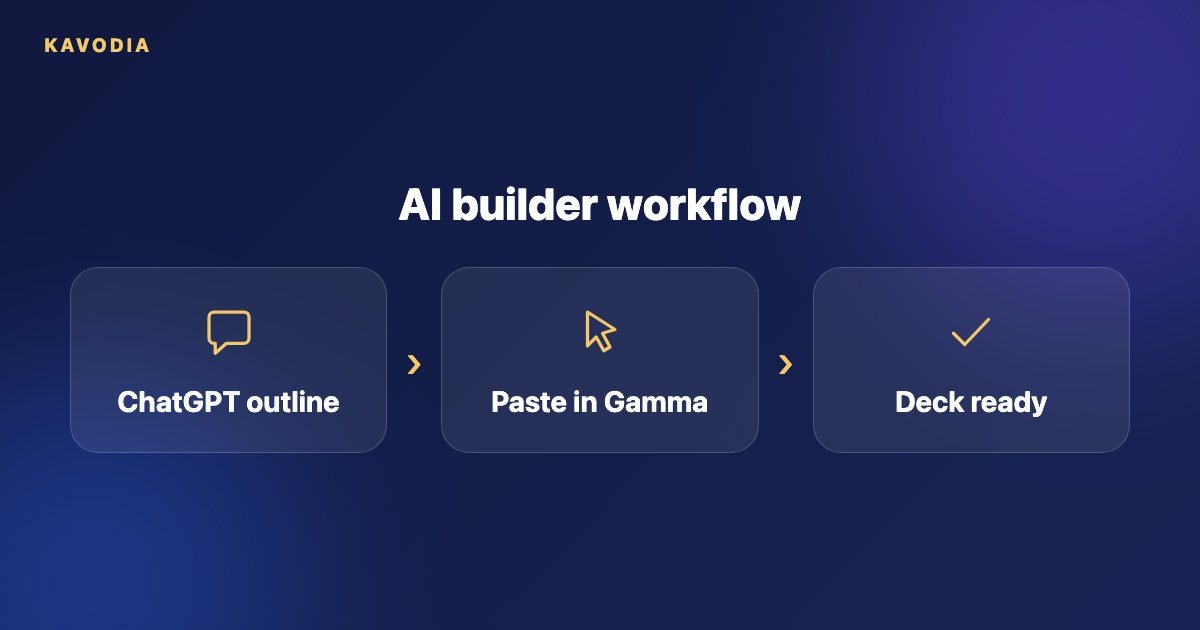
AI builders like Gamma take a text outline and turn it into a designed deck in seconds. The visuals, fonts, and spacing are handled automatically. This is the best option when you want professional-looking slides without touching any layout settings yourself.
First, prompt ChatGPT to organize your text into a slide-by-slide format: "Create a 10-slide outline with a title and 3 bullet points per slide. Also suggest an image keyword for each slide." Copy the output. Go to Gamma, select the option to generate from text, and paste your outline. The tool produces a full deck almost instantly.
Imagine a freelance consultant preparing a client pitch. She pastes her proposal text into ChatGPT, gets a structured outline, and drops it into Gamma. Five minutes later she has a polished 12-slide deck ready to share as a PDF or .pptx file. No layout work, no font hunting, no spacing adjustments.
Which method should you choose?
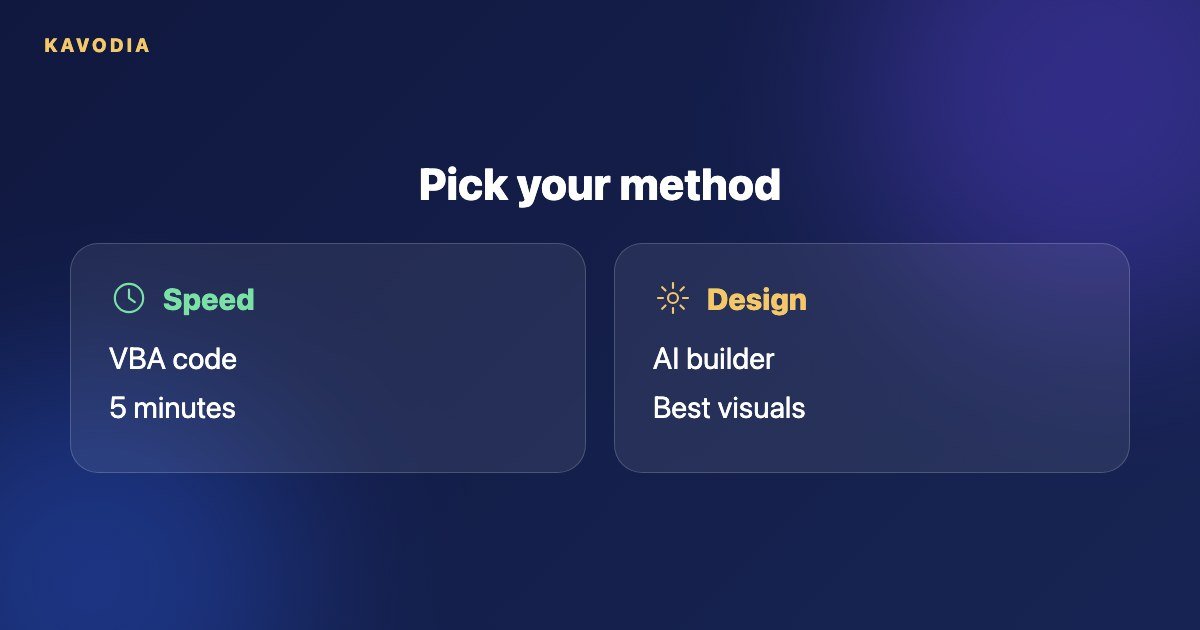
The right method depends on what you already have installed and how much visual polish you need. The VBA method is best for speed and works entirely inside PowerPoint. The Outline View method gives you more control over structure and does not require any code. AI builders like Gamma produce the best-looking slides but require a third-party account.
I suggest trying all three once to see which one fits your routine. If you build presentations every week, the VBA method saves the most time because it skips all manual formatting. If design matters more than speed, go with an AI builder that handles layout for you.
Consider your audience as well. Internal team meetings rarely need heavy design work, so the VBA or Outline method is enough. Client-facing pitches or conference talks benefit from the polished visuals an AI builder provides.
How do you improve the slides after ChatGPT generates them?
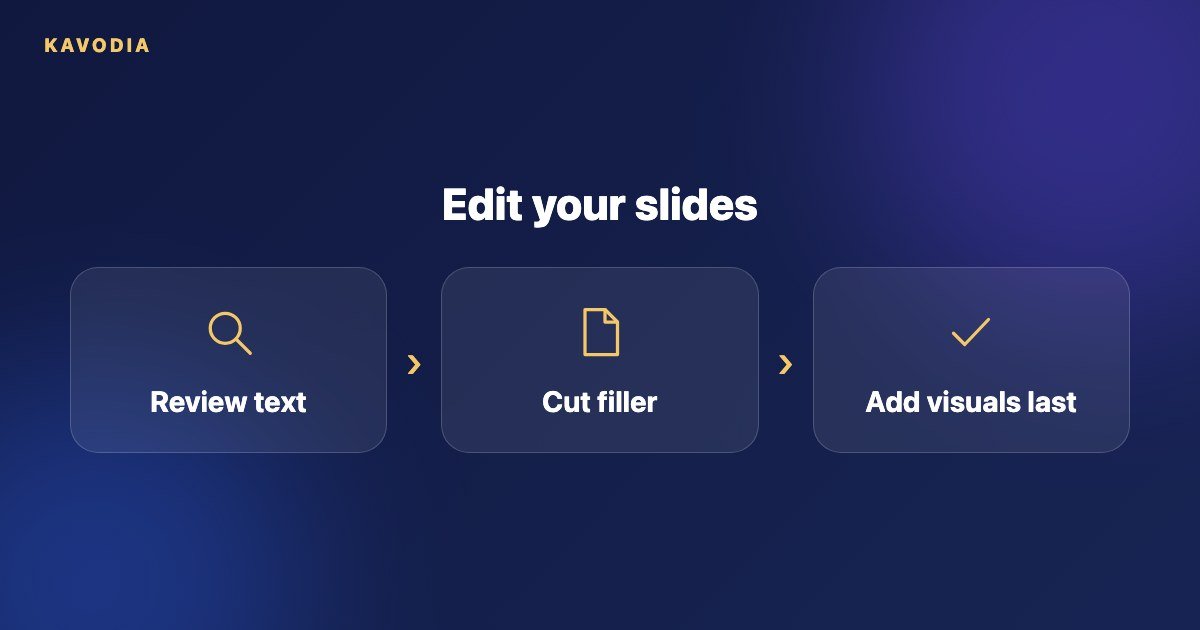
The first draft from ChatGPT is a starting point, not a final product. Review every slide for accuracy, clarity, and tone. The OpenAI prompt engineering guide recommends testing changes systematically: adjust a single element in your prompt, check the new output, and repeat until the result matches your goal.
Cut any bullet point that restates the slide title in different words. Replace generic phrases like "various benefits" with specific facts from your source text. Keep each bullet under 12 words so the audience can read it at a glance during your presentation.
Add images, charts, or icons after the text is finalized. Placing visuals before finalizing content often leads to rework when bullets change or move. Review the slide deck as a printed handout first, then add visuals as the last step.
What prompt mistakes waste the most time?
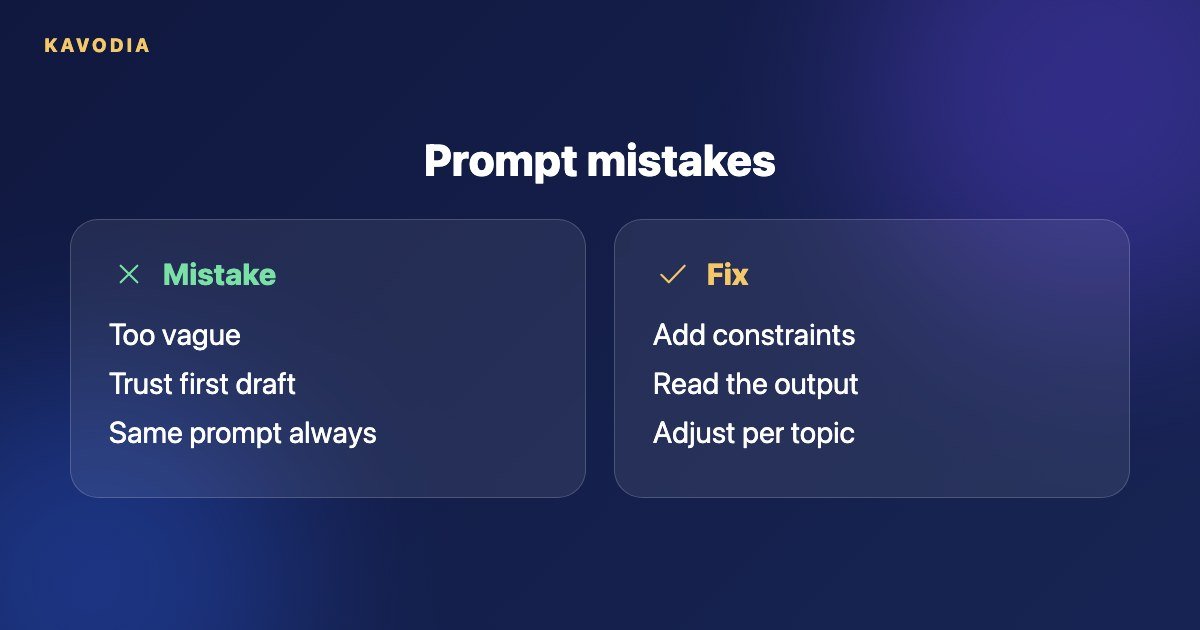
The biggest mistake is being too vague. A prompt like "Make me a presentation about marketing" gives ChatGPT no constraints. The output will be generic and you will spend more time editing than you saved by using the tool in the first place.
The second mistake is trusting the first draft without reading it carefully. ChatGPT may repeat a point across two slides, use jargon your audience does not know, or miss a key section of your source text. Always read through the full output before pasting it anywhere.
A third mistake is using the same prompt for every topic. A pitch deck needs a different structure than a training session or a quarterly review. Adjust your prompt template to match the purpose of each new presentation. Imagine reusing a "10 slides, 3 bullets" formula for a 45-minute workshop. The result will feel too shallow for the time slot.
How do you handle long texts that exceed the chat window?
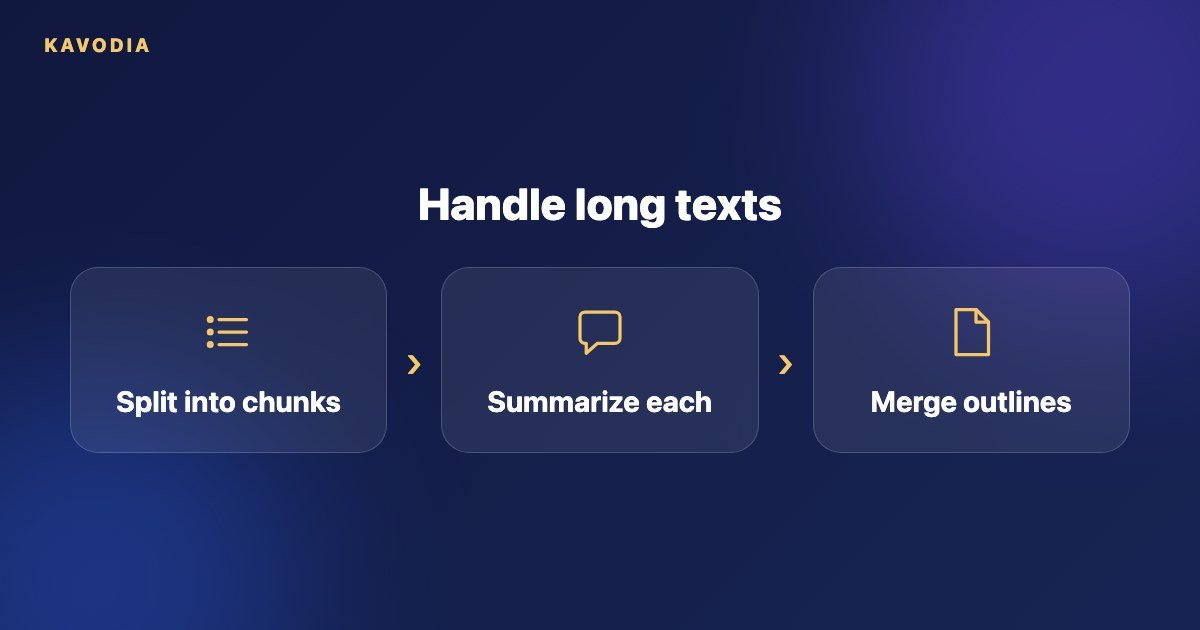
If your source text is very long, split it into sections before pasting it into ChatGPT. Ask ChatGPT to summarize each section into slide-ready bullet points. Then combine all the outputs into a single outline at the end.
The OpenAI prompt engineering guide calls this approach splitting complex tasks into simpler subtasks. By breaking the text into chunks, you reduce the chance of ChatGPT skipping or compressing important details that matter for your presentation.
Imagine a 20-page annual report. Paste the first 5 pages and ask for a 3-slide summary. Do the same for each subsequent section. At the end, ask ChatGPT to merge all partial summaries into one cohesive deck outline. This layered approach gives you better coverage than pasting everything at once.
Can you use this workflow for Google Slides instead?
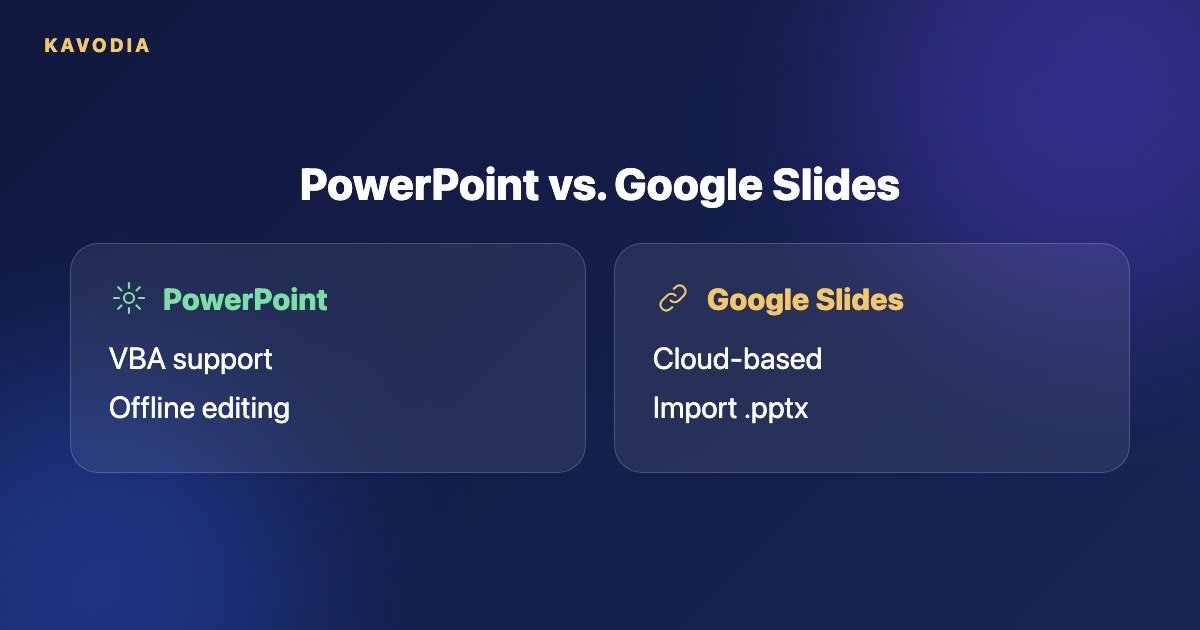
Yes. The Outline View method works the same way if you import a Word file into Google Slides. Gamma exports to .pptx and PDF, so you can download the .pptx file and then upload it to Google Slides. The VBA method is the only one tied specifically to the Microsoft PowerPoint desktop application.
In Google Slides, go to File, then Import slides, and select the .pptx file exported from Gamma or generated via VBA in PowerPoint. The formatting carries over in most cases. Fonts and spacing may shift slightly, so review each slide after importing to catch any layout issues.
Imagine a remote team that uses Google Workspace. One person builds the slides with the VBA method in PowerPoint, exports a .pptx, and uploads it to Google Slides for the rest of the team to edit. The handoff takes less than a minute.
Frequently asked questions
Is ChatGPT useful for creating PowerPoint slides?
Yes. ChatGPT can generate text outlines, structured bullet points, and VBA code that PowerPoint interprets as ready-to-use slides. You still need PowerPoint or an AI builder to handle the visual layout, but ChatGPT handles the content creation step.
How many slides can ChatGPT create in one prompt?
There is no fixed limit on slide count. I recommend asking for 7 to 15 slides per prompt to get the best results. Shorter decks produce more focused content. If you need more than 20 slides, split the task into two prompts and combine the outputs afterward.
Do you need coding skills to use the VBA method?
No. You copy the code from ChatGPT and paste it into the VBA editor in PowerPoint. You do not write or modify any code yourself. If an error appears, you paste the error message back into ChatGPT and it provides a corrected version of the script.
Can you add images and charts with this workflow?
ChatGPT can suggest image keywords or describe charts in text form, but it cannot insert actual image files into your slides. Add visuals manually in PowerPoint after the text is set, or use an AI builder like Gamma that applies design elements and layout automatically when you paste your outline.
Does the Outline import accept plain text files?
Yes. According to the Microsoft Support documentation, PowerPoint supports importing outlines from .docx, .rtf, or .txt files. If you use a plain text file, use tab indentation to define the hierarchy between slide titles and bullet points.